Table of Contents
-
Overview
-
Operating Environment & Precautions
-
Introduction
-
Connection/Usage of Various Devices
-
Screen Configuration
-
Use of Healthcare/Health Connect
-
Data Migration from ECLEAR plus
-
FAQ (In Case of Trouble)
Overview

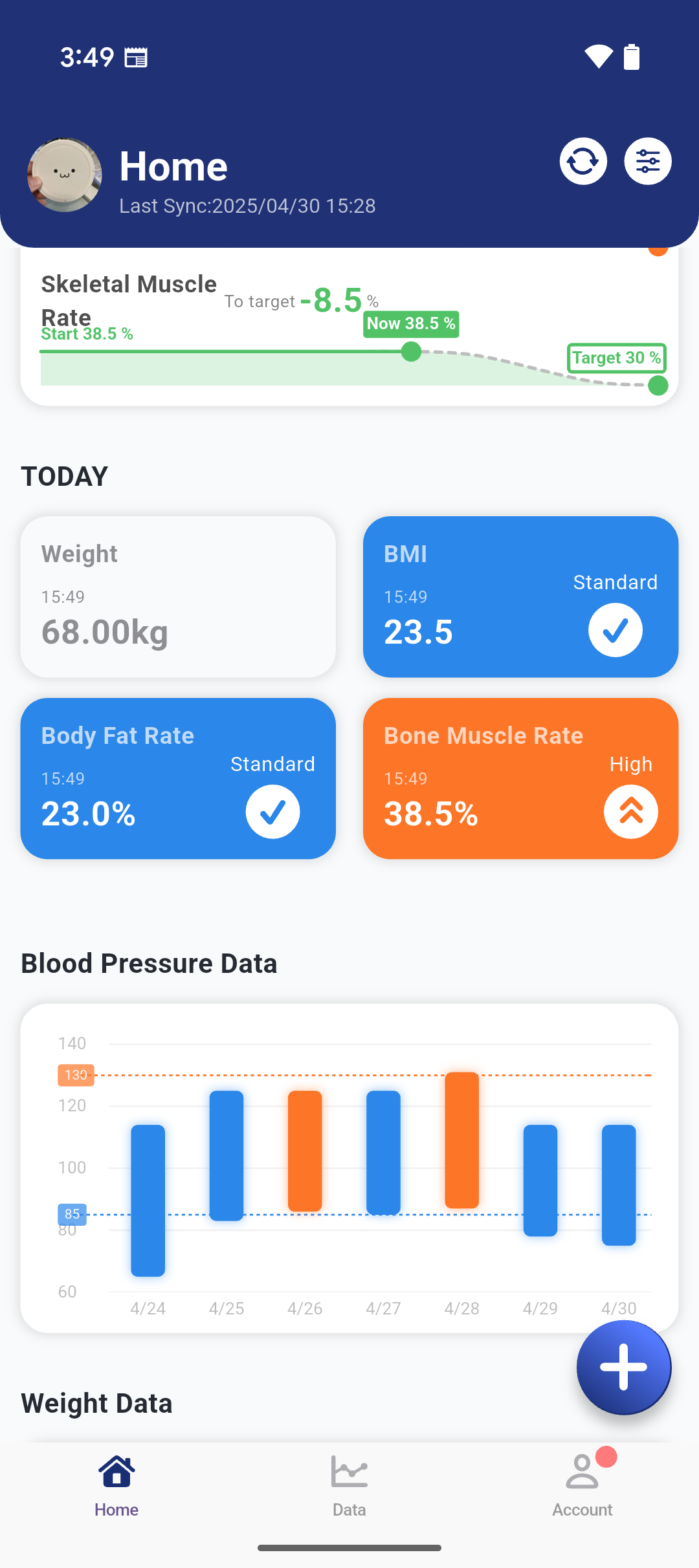
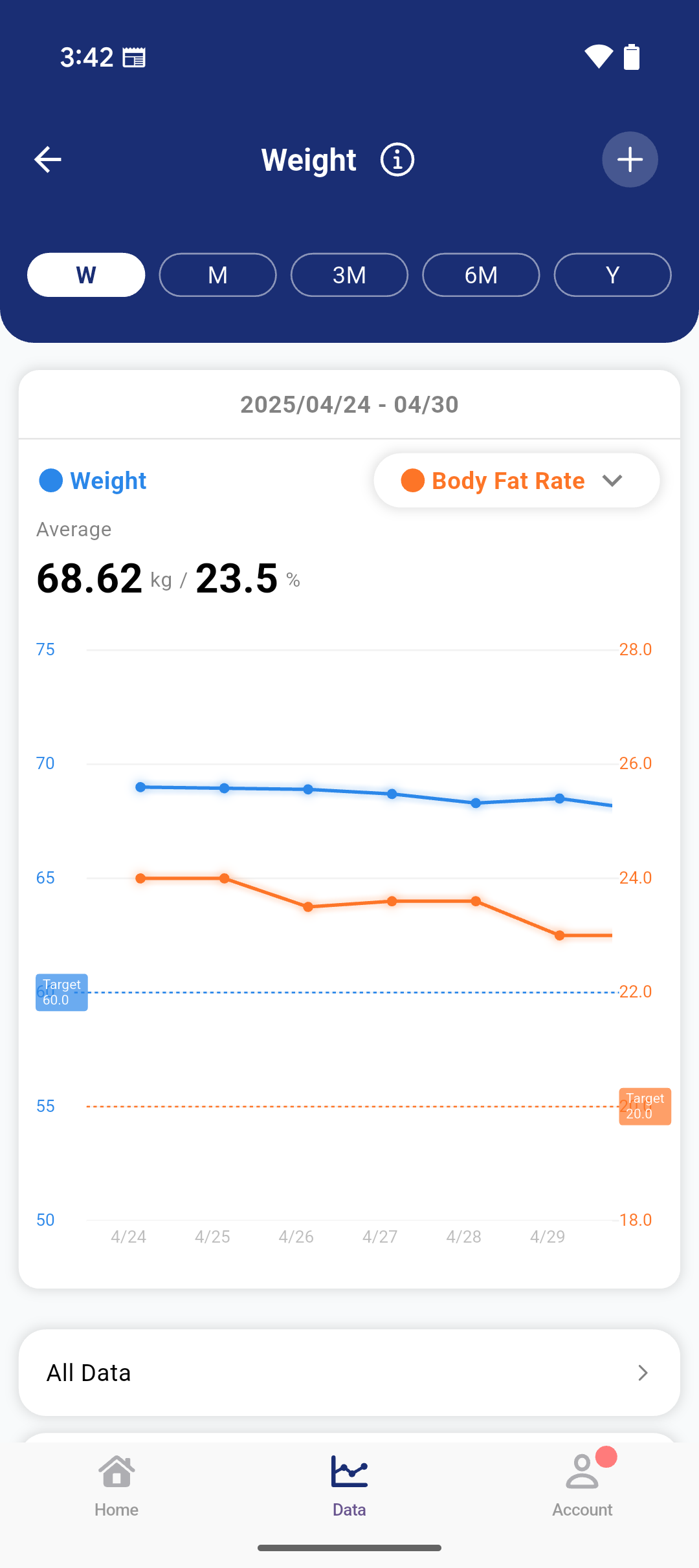
This allows the visualization of the day's details, weight, and blood pressure in graphs, which can create feelings of achievement and satisfaction, or motivate those who feel they need to do more, thus adding stimulus to everyday life. You can instantly see how well you have achieved your daily goals, which can further motivate exercise.
So, why not start reviewing your lifestyle with 'ELECOM Healthcare'?
Features
Trend Graph with Selectable Display Period
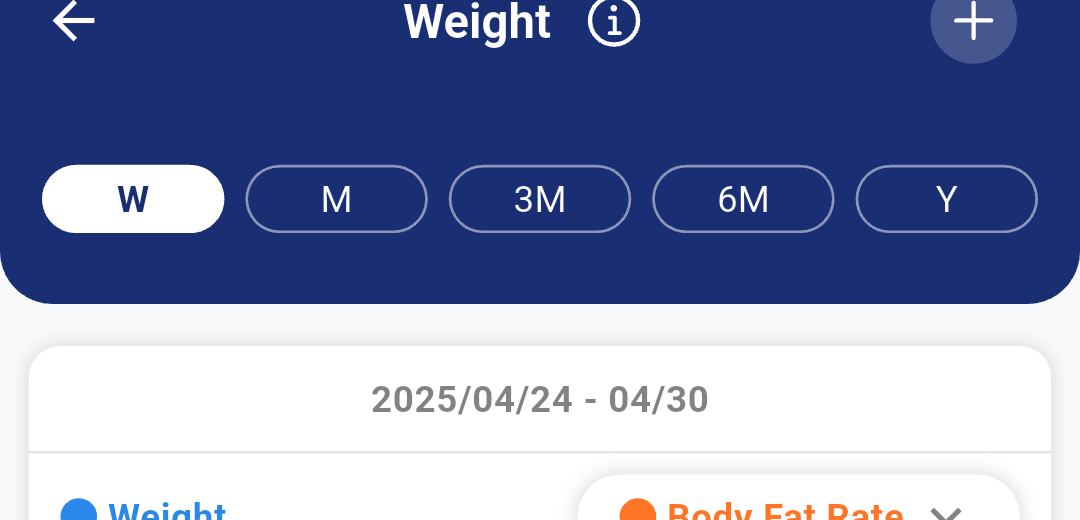
Blood pressure, step count, and weight values can be displayed in graphs with selectable display periods of a week, month, 3 months, 6 months, or year. You can understand your daily exercise situation. (Step count can also be selected for a single day)
Weight Graph
Visualize daily weight values in a graph. You can compare two measurements by setting body fat percentage or skeletal muscle percentage on the second axis.
Blood Pressure Graph
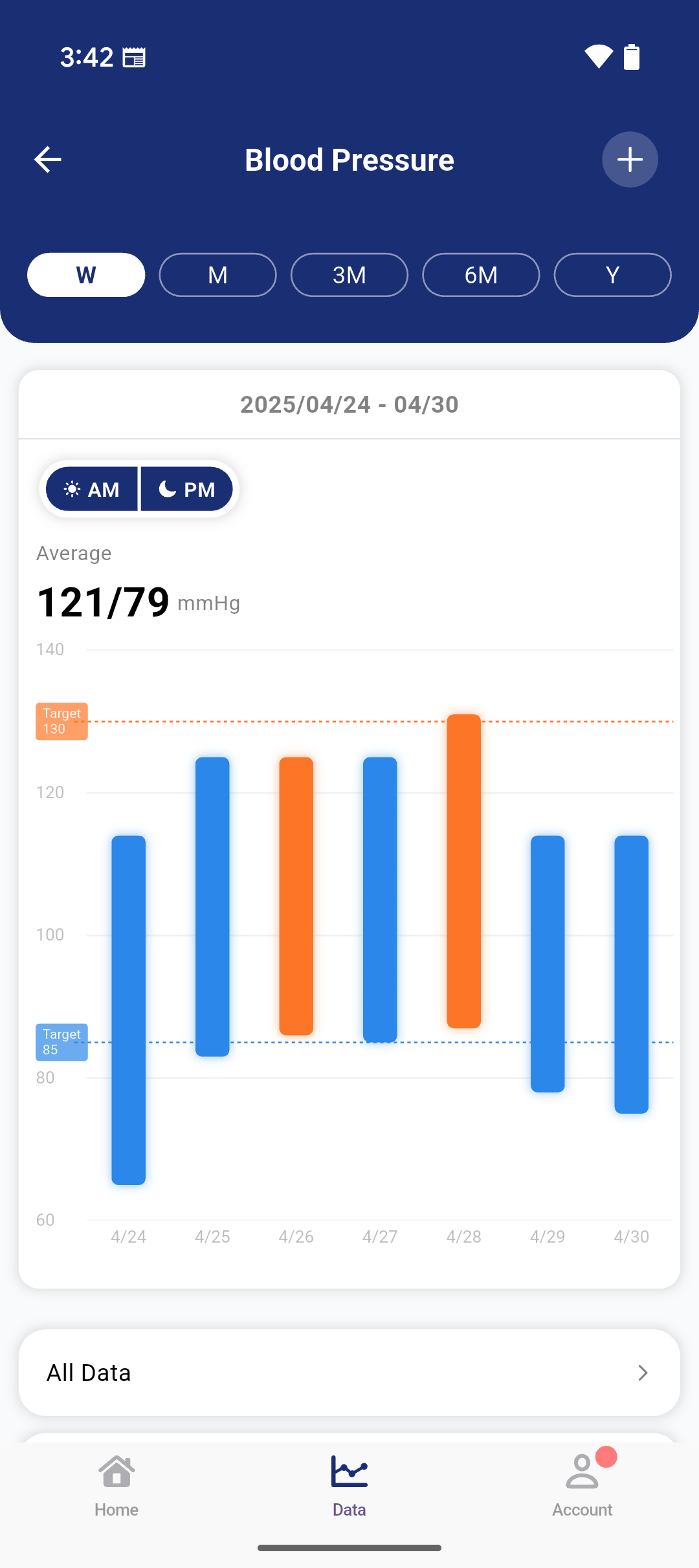
Visualize daily maximum and minimum blood pressure values in a graph. Display measurement values separately for morning and evening, useful for health management.
Step Count Graph
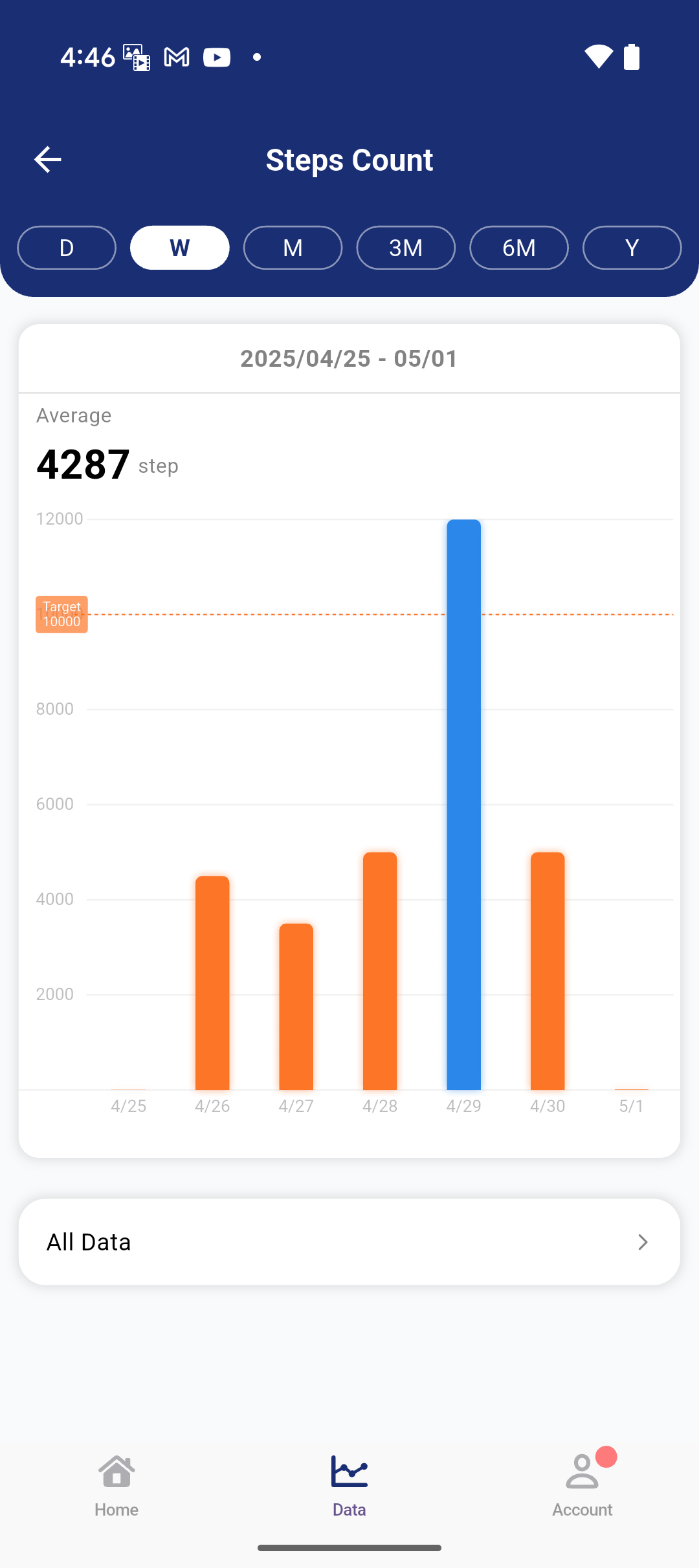
Visualize daily walking conditions in a graph. Instantly see which time of day you are most active.
Estimate Bone Mass and Basal Metabolism Just from Weight and Body Fat Percentage Entry
Through joint research with Tsukuba University, unique analysis based on MRI measurement data enables estimation of 'visceral fat level', bone mass, basal metabolism, etc., which are closely related to lifestyle diseases.PDF Output of Blood Pressure and Weight
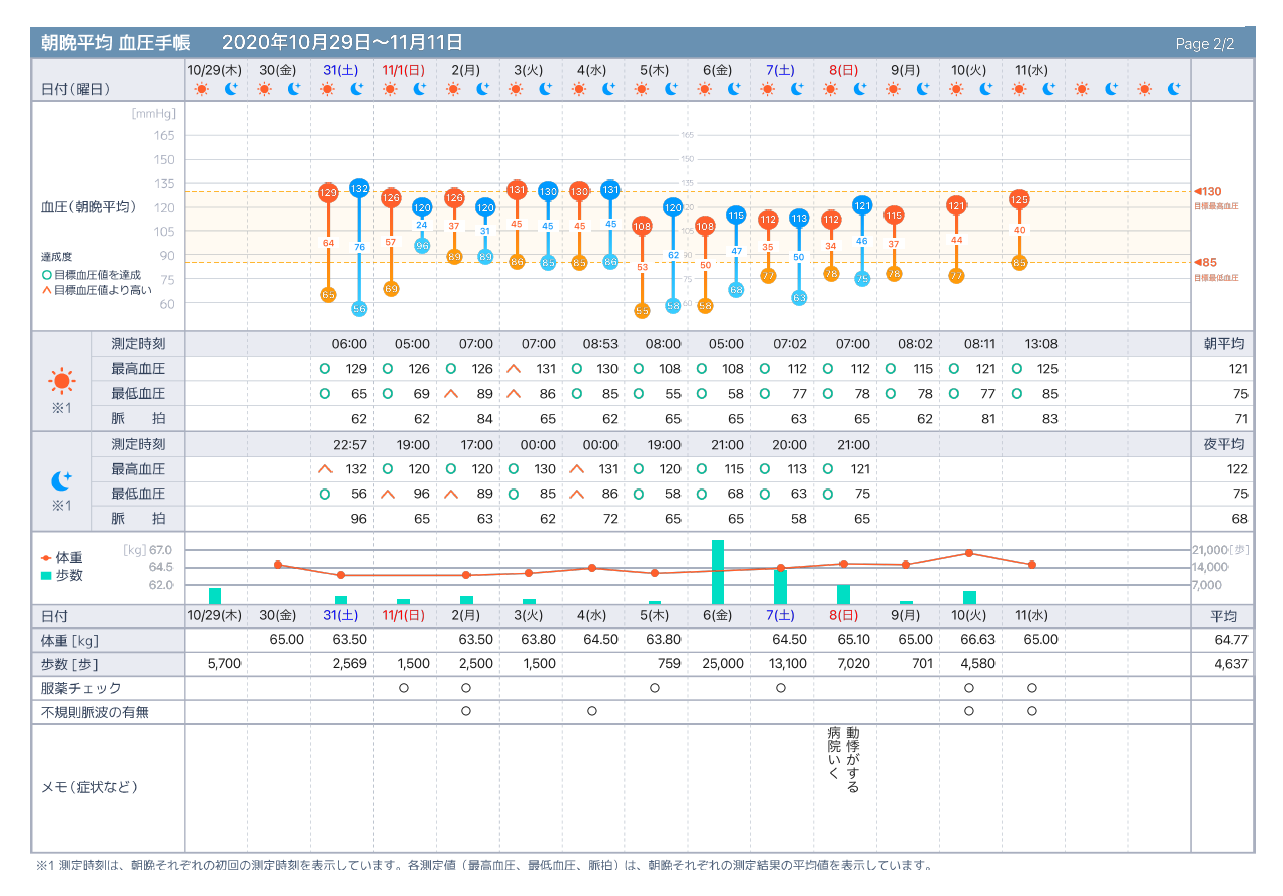
Output data such as blood pressure, weight, and step count to PDF. Graphs for blood pressure, weight, and step count are also included.
*PDF is only in Japanese.
Sample PDF
CSV Output of Blood Pressure and Weight
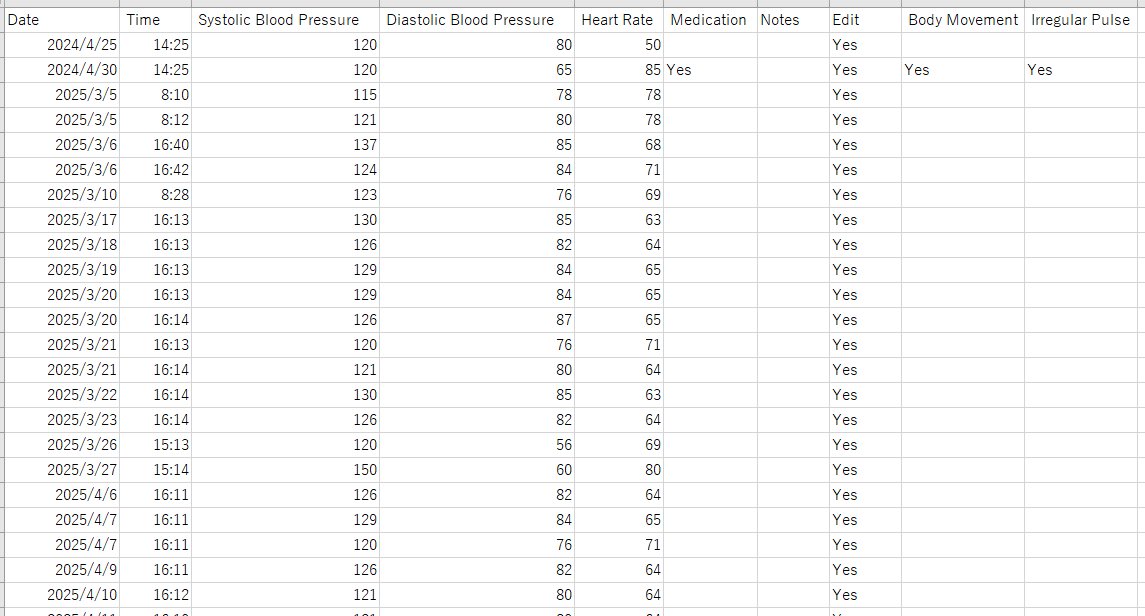
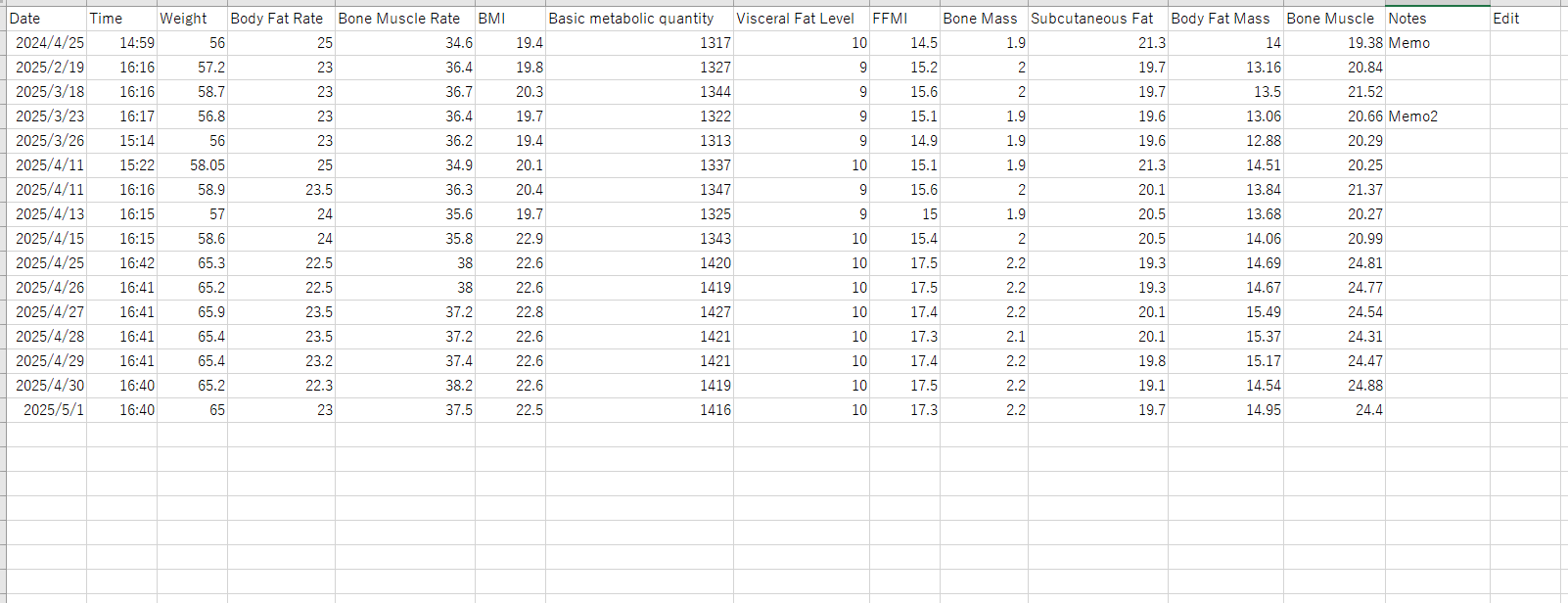
Output a list of blood pressure and weight data to CSV.
Sample CSV (Weight) Sample CSV (Blood Pressure)
Goal Setting
Set goals for blood pressure, step count, and weight. For weight, you can visualize the progress from the start date to the target date of the goal, helping maintain motivation.
Operating Environment & Precautions
Operating Environment
Android
Android 11 ~ 17Android device with Bluetooth 4.0/BLE function
iOS
iOS/iPadOS 16 ~ 18, 26※ iPadOS 17 or later is required to use the healthcare app connection on iPad.
※ The iOS trademark is used under a license from Cisco in the U.S.
Precautions
・This application requires an internet connection. Depending on the settings and contract details, packet charges may occur, so please be careful.Introduction
To launch this application, tap the 'ELECOM Healthcare' icon from the device's program launcher (app list).
After installation, please start the application and agree to the usage terms and privacy policy.
After agreement, initial setup and device connection will be guided in a wizard format. Follow the instructions on the screen to configure.
If login to ELECOM Healthcare Cloud is not required, select [Skip].
・Acquisition of step count
・Export of weight/body fat percentage/blood pressure/heart rate
※ If Health Connect is not installed, please install it from Google Play.
※ iPad requires iPadOS 17 or later to use healthcare.
You can set a photo by tapping the person icon. You can choose a photo or set a photo taken with the camera.
Once input is complete, tap the "✔" button at the top right of the screen.
[When Using Bluetooth Device]
To search for and connect Bluetooth devices,
・Bluetooth enabled
・Location enabled
・Permission to access location
etc., are required. Follow the steps on the screen to configure the necessary settings.
Also, depending on the model, input of connection ID or selection of user may be required. Please also check with "Connection/Usage of Various Devices" for usage by model.
[When Using Camera-Compatible Device]
When using a device that reads measurements with a camera, tap [Read with Camera Here] and select your model.
After installation, please start the application and agree to the usage terms and privacy policy.
After agreement, initial setup and device connection will be guided in a wizard format. Follow the instructions on the screen to configure.
1. Agreement Screen
Tap "Agree and Start".
2. ELECOM Healthcare Cloud Setup
Log in to ELECOM Healthcare Cloud. If you do not have a Healthcare Cloud account, please do so from [New ELECOM Healthcare Account Registration] or use Google/Apple login.If login to ELECOM Healthcare Cloud is not required, select [Skip].
3. Use of Healthcare/Health Connect
By linking with Health Connect or Healthcare, the following functions can be utilized.・Acquisition of step count
・Export of weight/body fat percentage/blood pressure/heart rate
※ If Health Connect is not installed, please install it from Google Play.
※ iPad requires iPadOS 17 or later to use healthcare.
4. Profile Setup
Set up your profile. Input/select each item.You can set a photo by tapping the person icon. You can choose a photo or set a photo taken with the camera.
Once input is complete, tap the "✔" button at the top right of the screen.
5. Setup Completion
The setup for using this application is now complete. Tap "Start" to use it.
6. Device Registration
Select the device to be used. Proceed with settings for any device that requires configuration.[When Using Bluetooth Device]
To search for and connect Bluetooth devices,
・Bluetooth enabled
・Location enabled
・Permission to access location
etc., are required. Follow the steps on the screen to configure the necessary settings.
Also, depending on the model, input of connection ID or selection of user may be required. Please also check with "Connection/Usage of Various Devices" for usage by model.
[When Using Camera-Compatible Device]
When using a device that reads measurements with a camera, tap [Read with Camera Here] and select your model.
Connection/Usage of Various Devices
Initial setup methods vary depending on the device you use. Please perform initial setup according to your device's setup instructions.
- Bluetooth/Wi-Fi Body Composition Analyzer (HCS-BTWFS01/CAFSBTW01/EFSBTW01)
- Bluetooth Body Composition Analyzer (HCS-BTFS01)
- Automatic Reading Compatible Blood Pressure Monitor (HCM-AS02/HCM-AS03BT/HCM-AS04)
- Bluetooth Blood Pressure Monitor (HCM-AS03BT)
- Bluetooth Blood Pressure Monitor (HCM-AS01BT/HCM-WS01BT)
- Bluetooth/Wi-Fi Body Composition Analyzer (HCS-BTWFS01/CAFSBTW01/EFSBTW01)
- Bluetooth Body Composition Analyzer (HCS-BTFS01)
- Automatic Reading Compatible Blood Pressure Monitor (HCM-AS02/HCM-AS03BT/HCM-AS04)
- Bluetooth Blood Pressure Monitor (HCM-AS03BT)
- Bluetooth Blood Pressure Monitor (HCM-AS01BT/HCM-WS01BT)
Bluetooth/Wi-Fi Body Composition Analyzer (HCS-BTWFS01/CAFSBTW01/EFSBTW01)

By using a Bluetooth/Wi-Fi body composition analyzer, the measured weight value and body fat percentage can be received and managed by this application.
-
Search for Device
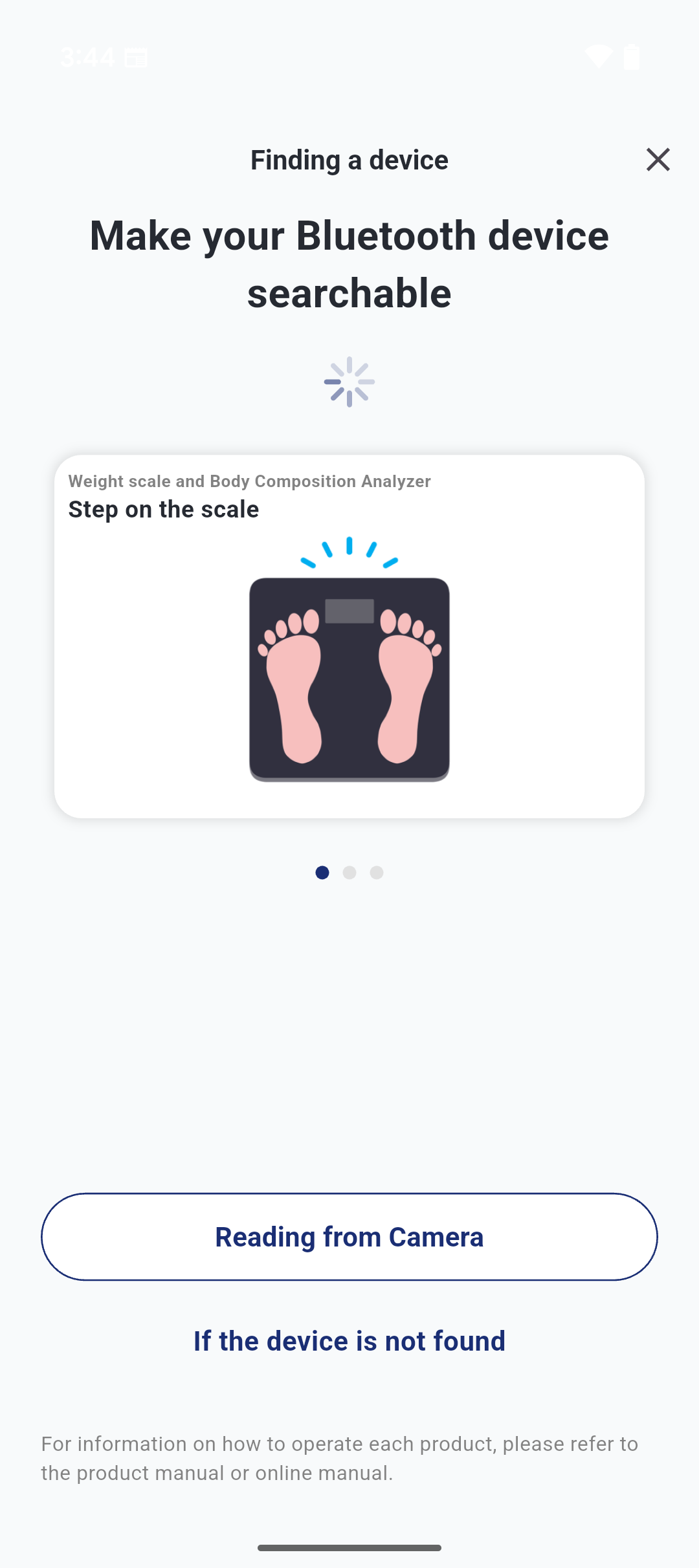 The body composition analyzer can be detected by getting on the body composition analyzer while in the Bluetooth search screen.
 -
Login to ELECOM Healthcare Cloud
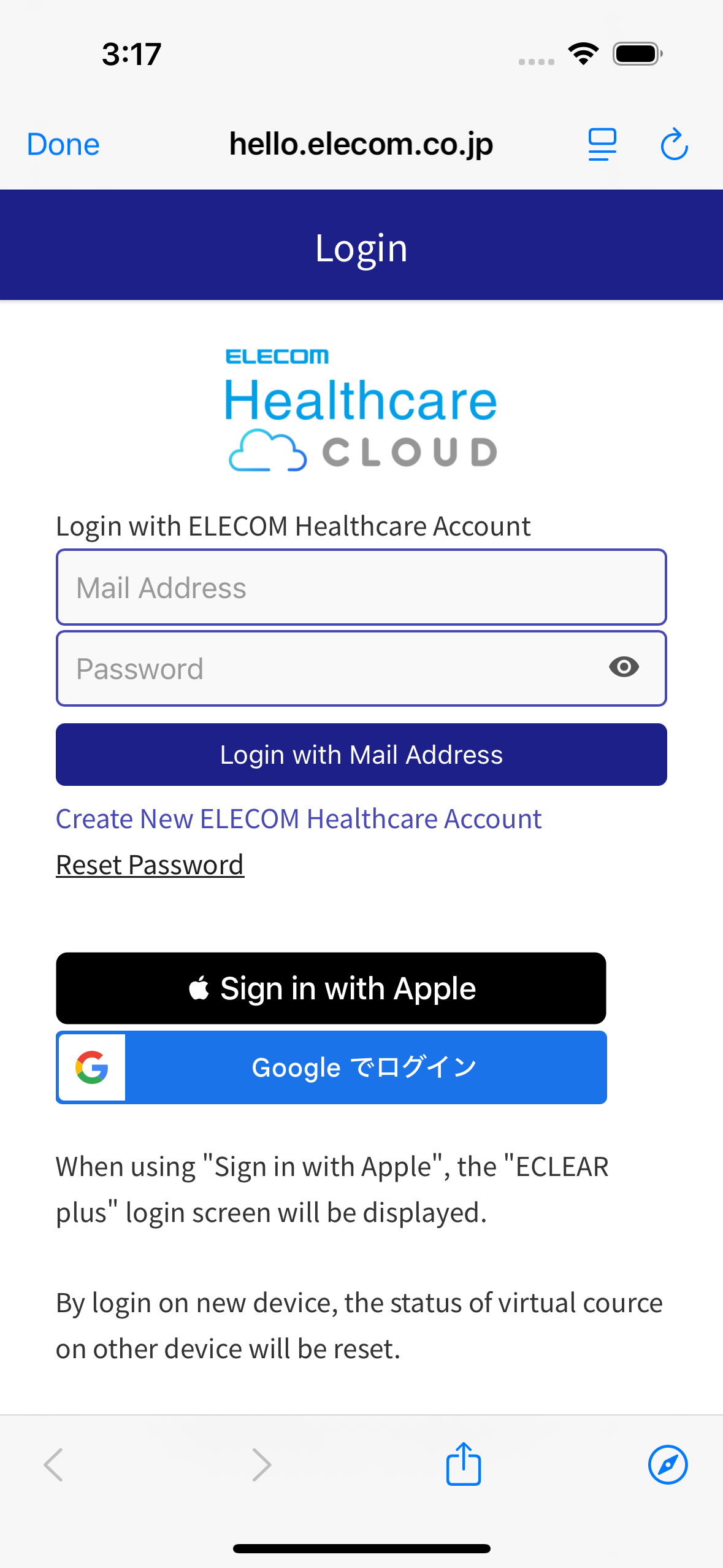 To use the Bluetooth/Wi-Fi Body Composition Analyzer, you need to use ELECOM Healthcare Cloud. If you have already registered an account, please log in. If you do not have an account, please create a new account.
 -
Wi-Fi Router Connection Settings
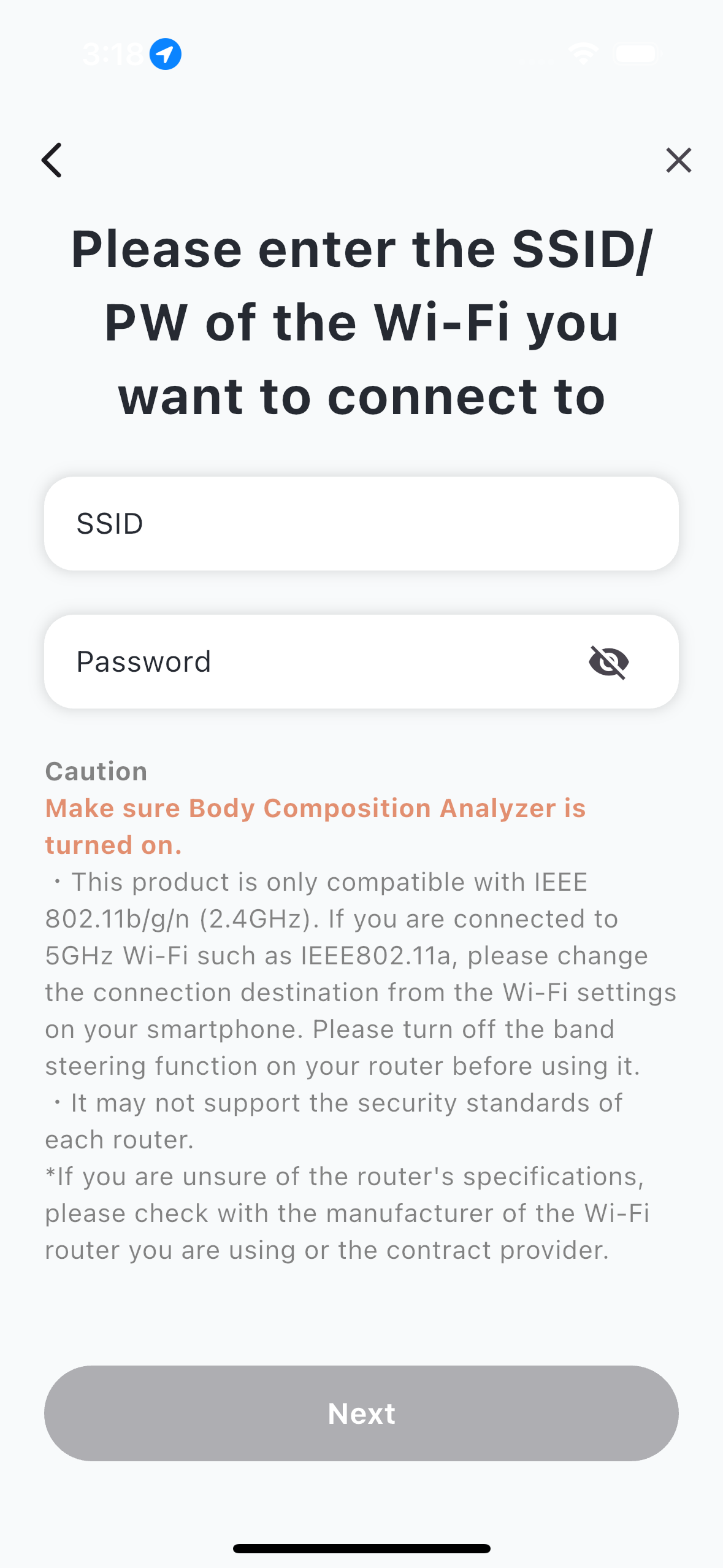 Set the SSID/PW of the router to which the Bluetooth/Wi-Fi body composition analyzer is connectedThe SSID will automatically display the one your smartphone is connected to, so please set only the PW.
If you are using a different router, please reconnect to your router in the Wi-Fi settings of your smartphone.- This product is only compatible with IEEE 802.11b/g/n (2.4GHz). If you are connected to 5GHz Wi-Fi such as IEEE802.11a, please change the connection destination from the Wi-Fi settings on your smartphone.
- Please turn off the band steering function on your router before using it.
It may not support the security standards of each router.
* If you are unsure of the router's specifications, please check with the manufacturer of the Wi-Fi router you are using or the contract provider.
-
Measurement
 Stand on the body composition analyzer, and after the measurement is complete, you can receive the measurement data by synchronizing it on the home screen of this app.
 -
Precautions when using this product
If the weight difference from the previous measurement exceeds the set value (default: ±2 kg), automatic registration will not be performed. Please register the corresponding measurement value manually at [Account] - [Device Management] - [Unregistered Data] in [HCS-BTWFS01/CAFSBTW01/EFSBTW01].
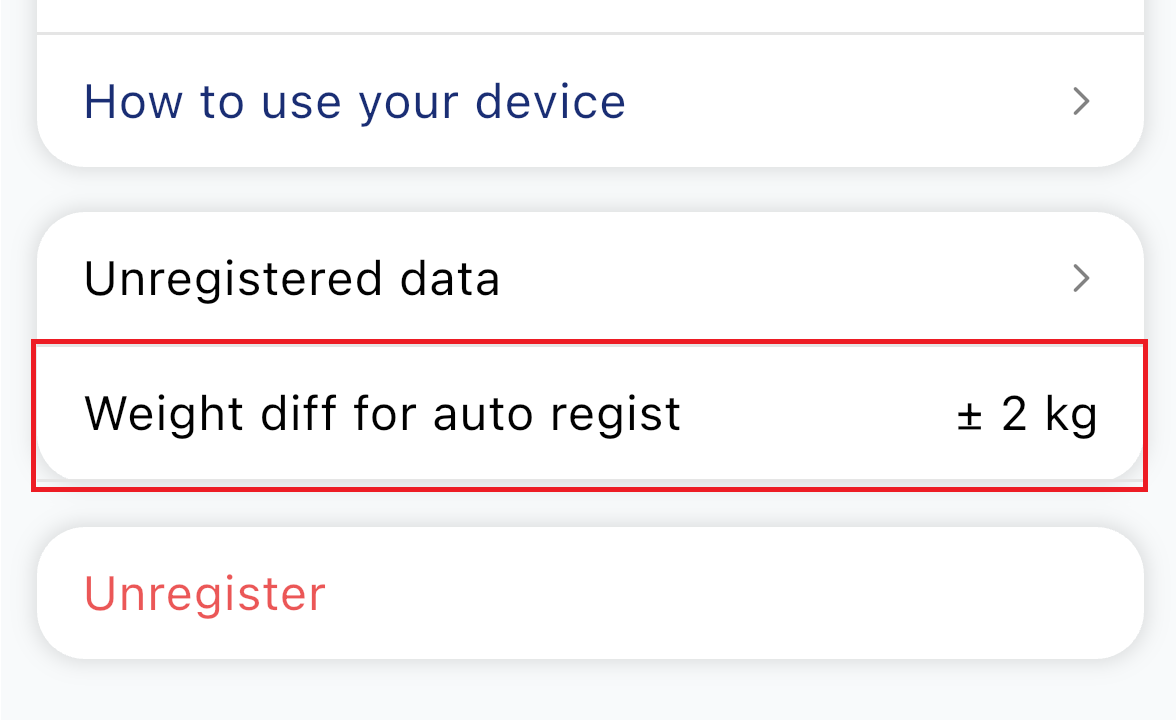
By changing the "Weight diff for auto regist", you can change the setting value at the time of automatic registration.
Bluetooth Body Composition Analyzer (HCS-BTFS01)
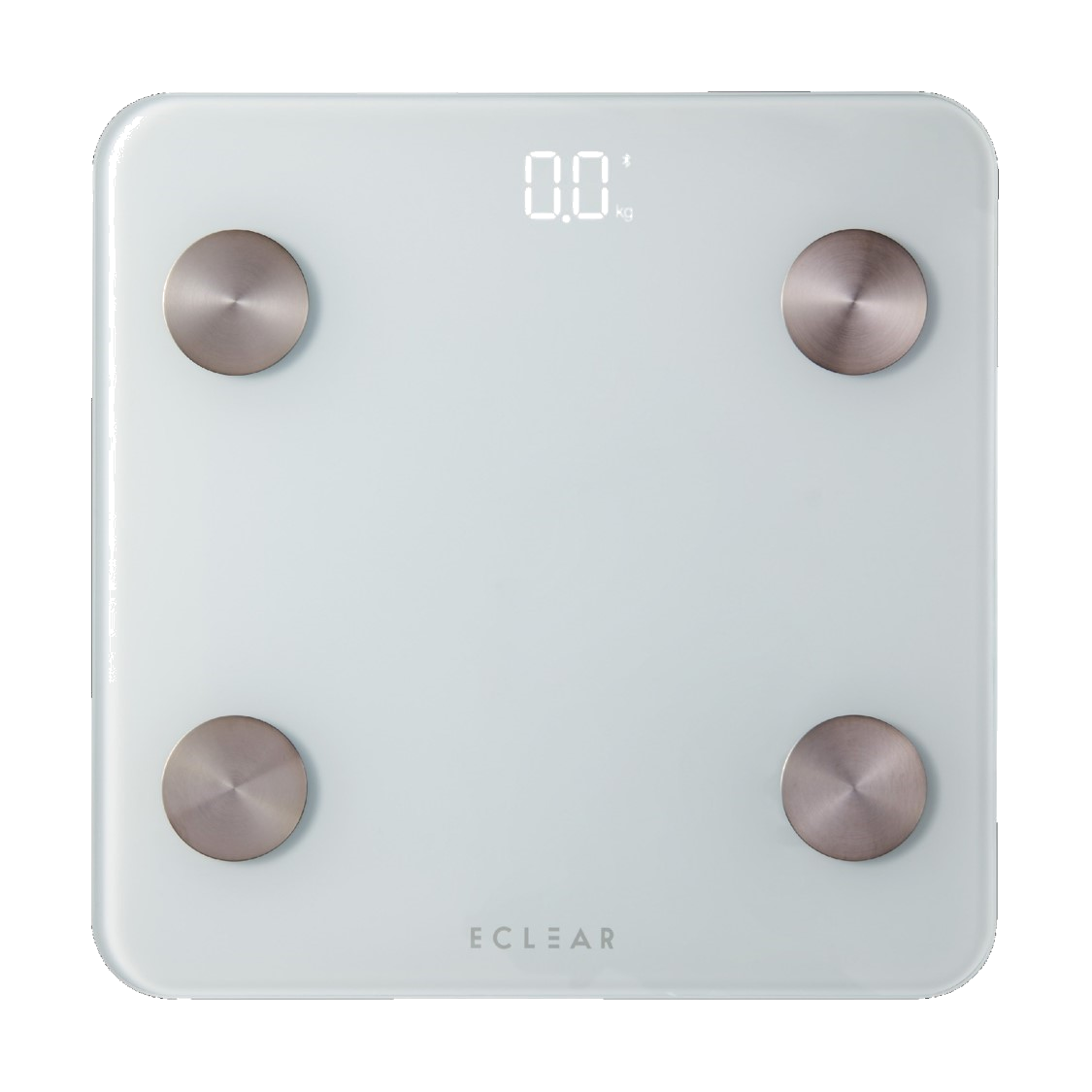
By using the Bluetooth Body Composition Analyzer (HCS-BTFS01), you can receive and manage measured weight values and body fat percentages with this application.
-
Search for Device
You can detect the body composition analyzer by standing on it while in the Bluetooth search screen.
Tap [Proceed to Settings] to complete registration. -
Register Device
Tap [Proceed to Settings] to complete registration. -
Measurement
Begin measurement by standing on the body composition analyzer while on the home screen. Once measurement is complete, the data is automatically registered in the app.
How to Use Automatic Reading Compatible Blood Pressure Monitor (HCM-AS02/HCM-AS03BT/HCM-AS04)
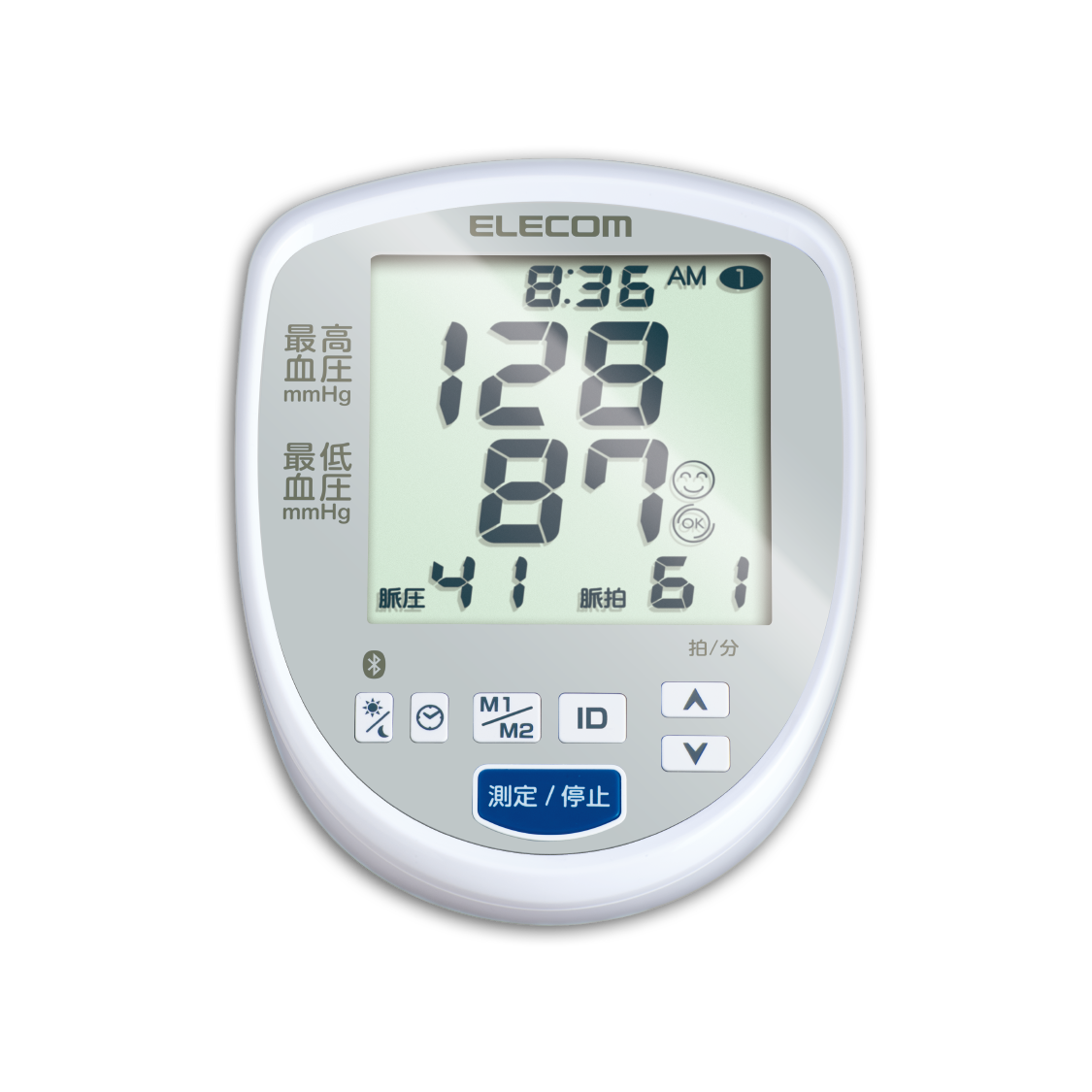
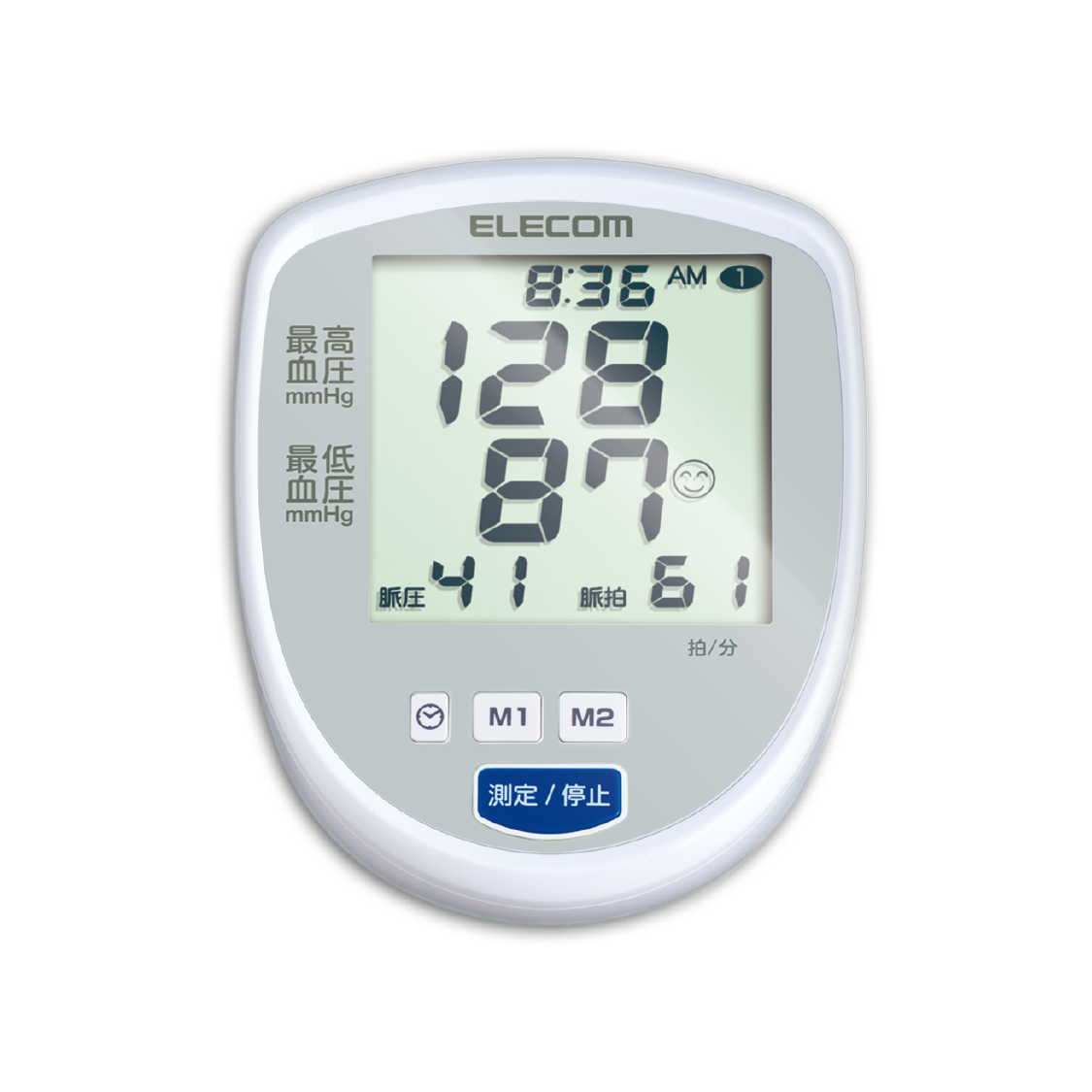
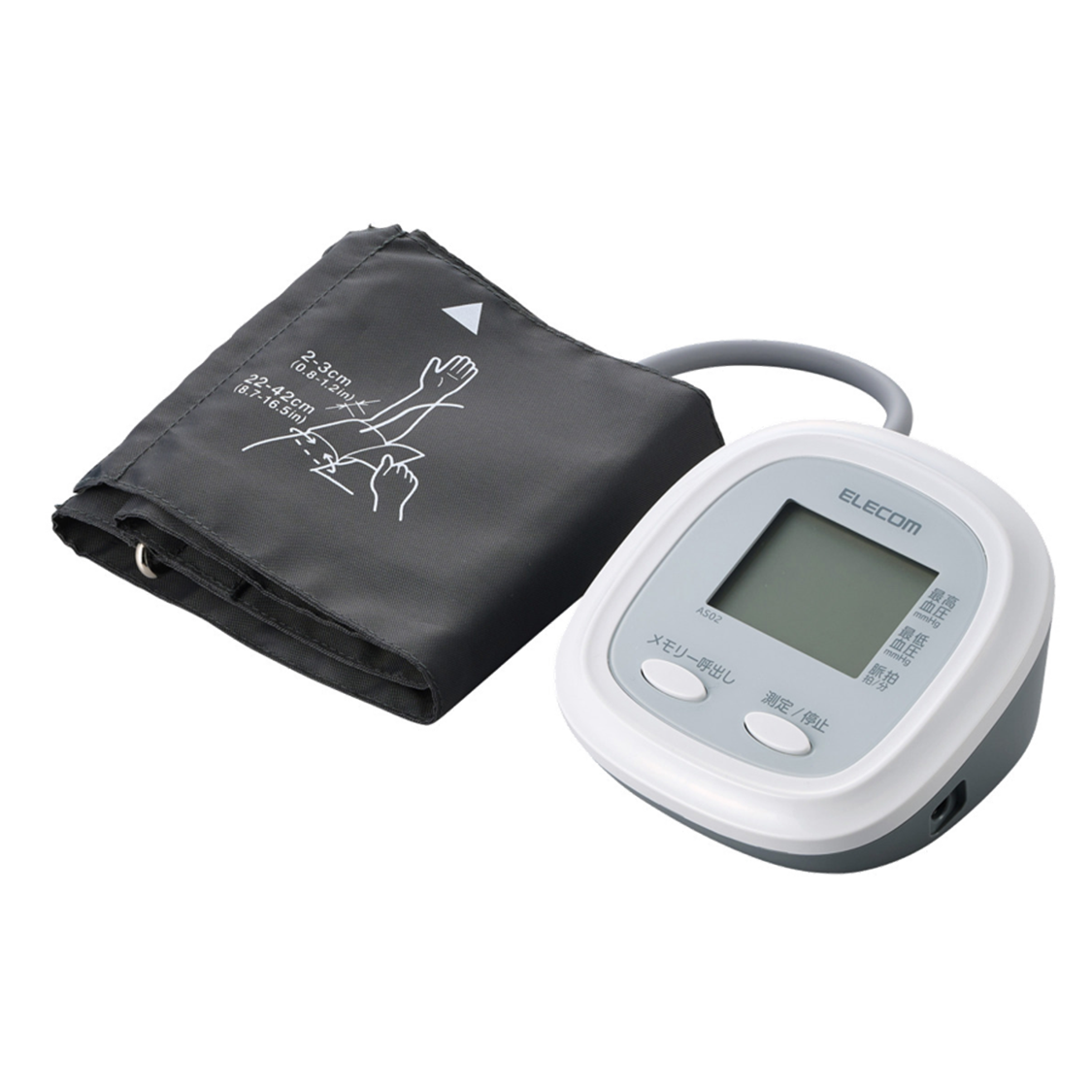
Automatic reading compatible blood pressure monitors allow you to read the measured values using the camera.
-
Register Device
Tap [Here for reading with camera] on the Bluetooth search screen.
Registered by selecting the appropriate model from the device list. -
Start Camera
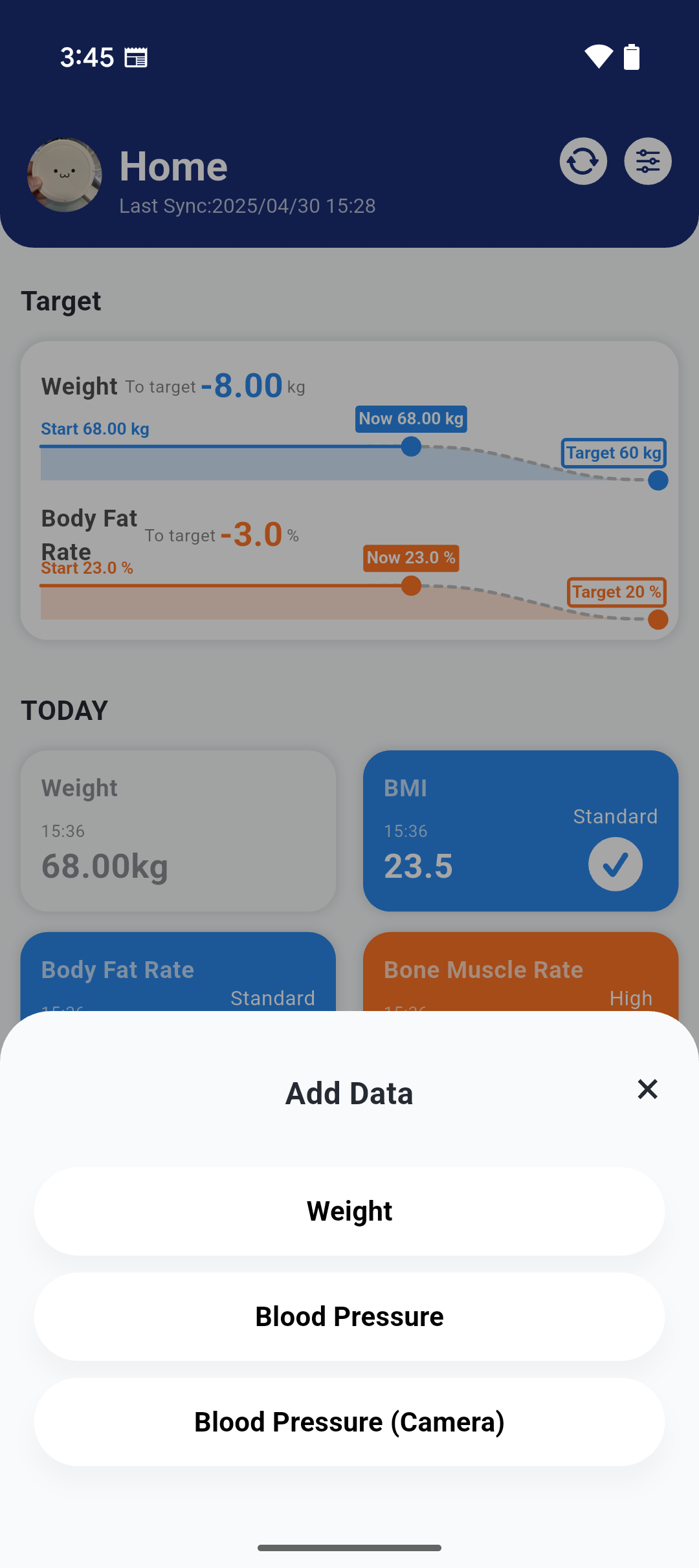 After measurement, select [Blood Pressure and Pulse from Camera] from the [+] button on the home screen.
-
Read Measured Values
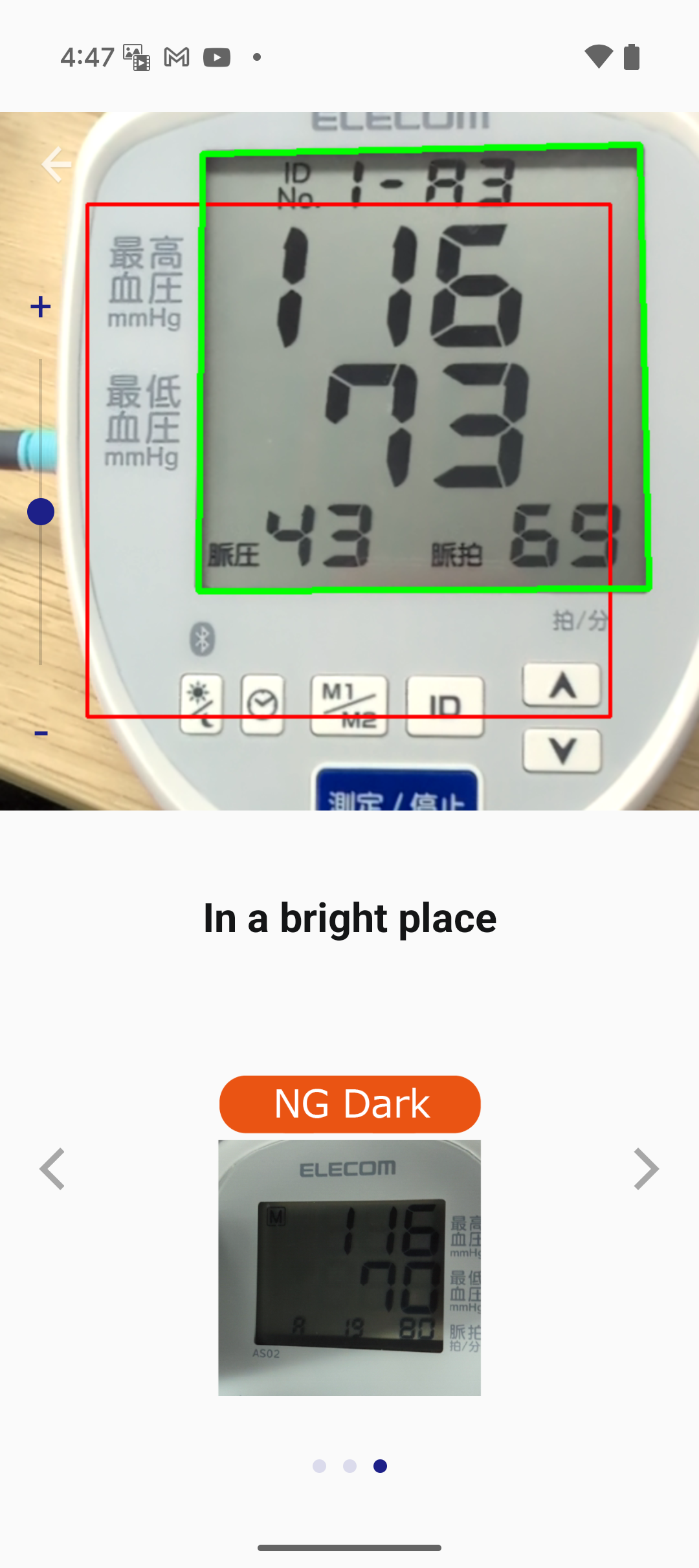 Move the smartphone or blood pressure monitor itself so that the measurement results fit within the red line area.
The camera screen automatically exits when the results are recognized. -
Confirm Measured Values
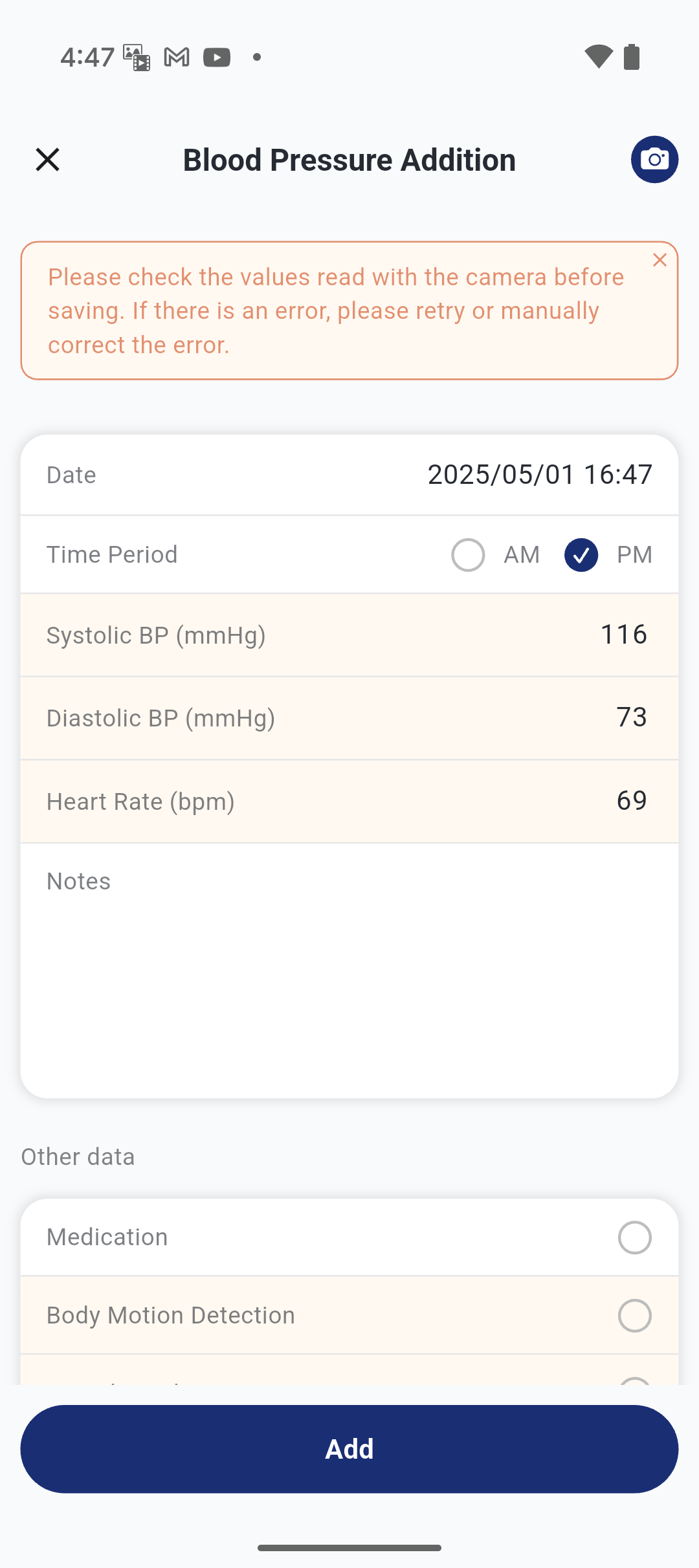 The read measured values are reflected in the app. Be sure to confirm that the measurement values are read correctly before saving.
Points for Automatic Reading
If it cannot be read correctly, please pay attention to the following points.
Capture from front Use in a bright environment 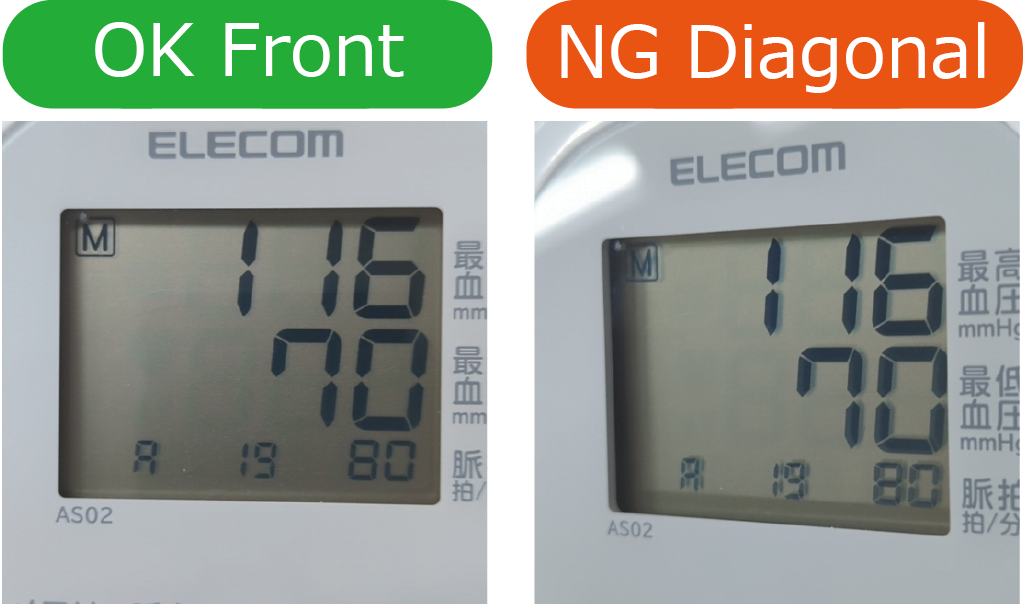
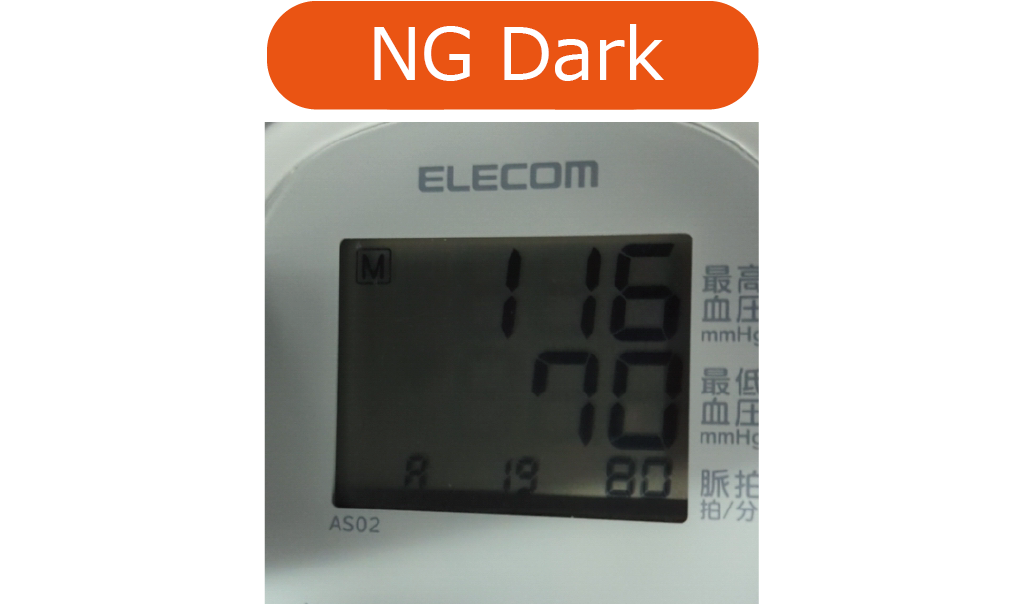
Avoid reflections from lighting 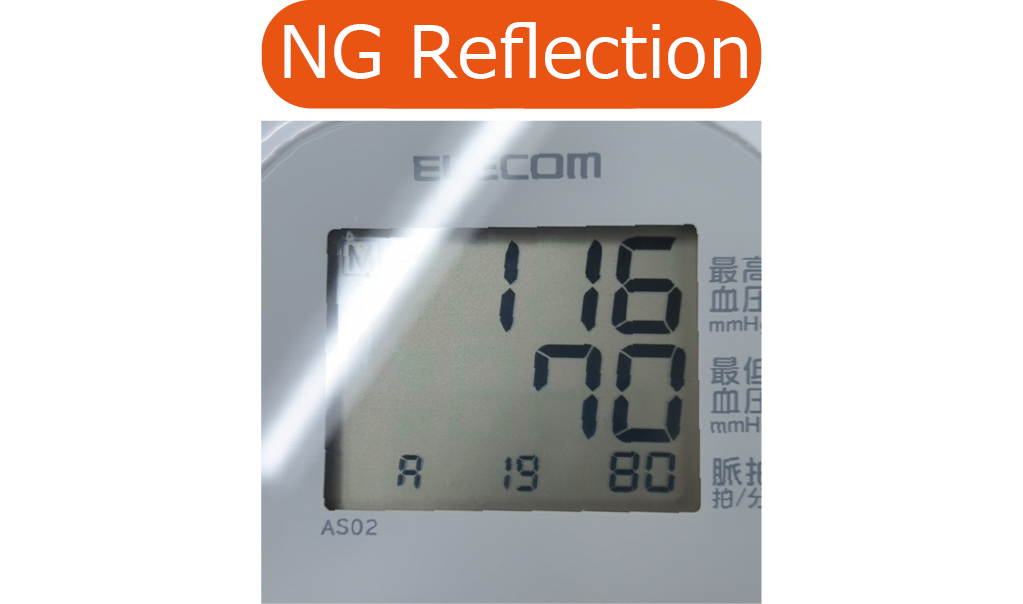 Bluetooth Blood Pressure Monitor (HCM-AS03BT)
By using the Bluetooth Blood Pressure Monitor (HCM-AS03BT), you can receive and manage measured blood pressure values with this app.
Bluetooth Blood Pressure Monitor (HCM-AS03BT)
By using the Bluetooth Blood Pressure Monitor (HCM-AS03BT), you can receive and manage measured blood pressure values with this app.-
Search & Register Device
You can detect it by pressing and holding the [Bluetooth] button on the blood pressure monitor while in the Bluetooth search screen.
-
Enter Connection ID
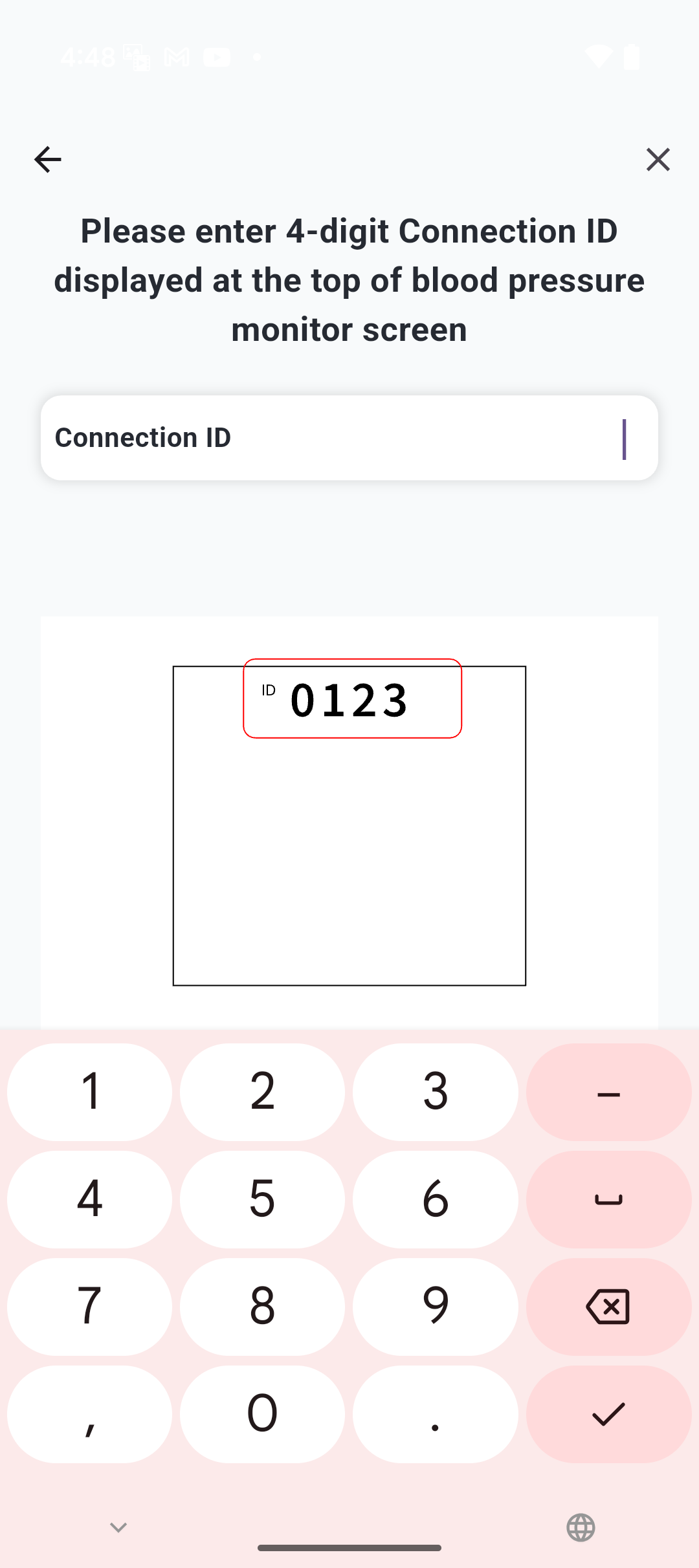 Enter the "Connection ID" displayed at the top of the blood pressure monitor screen and tap "Proceed".
-
Enter User ID
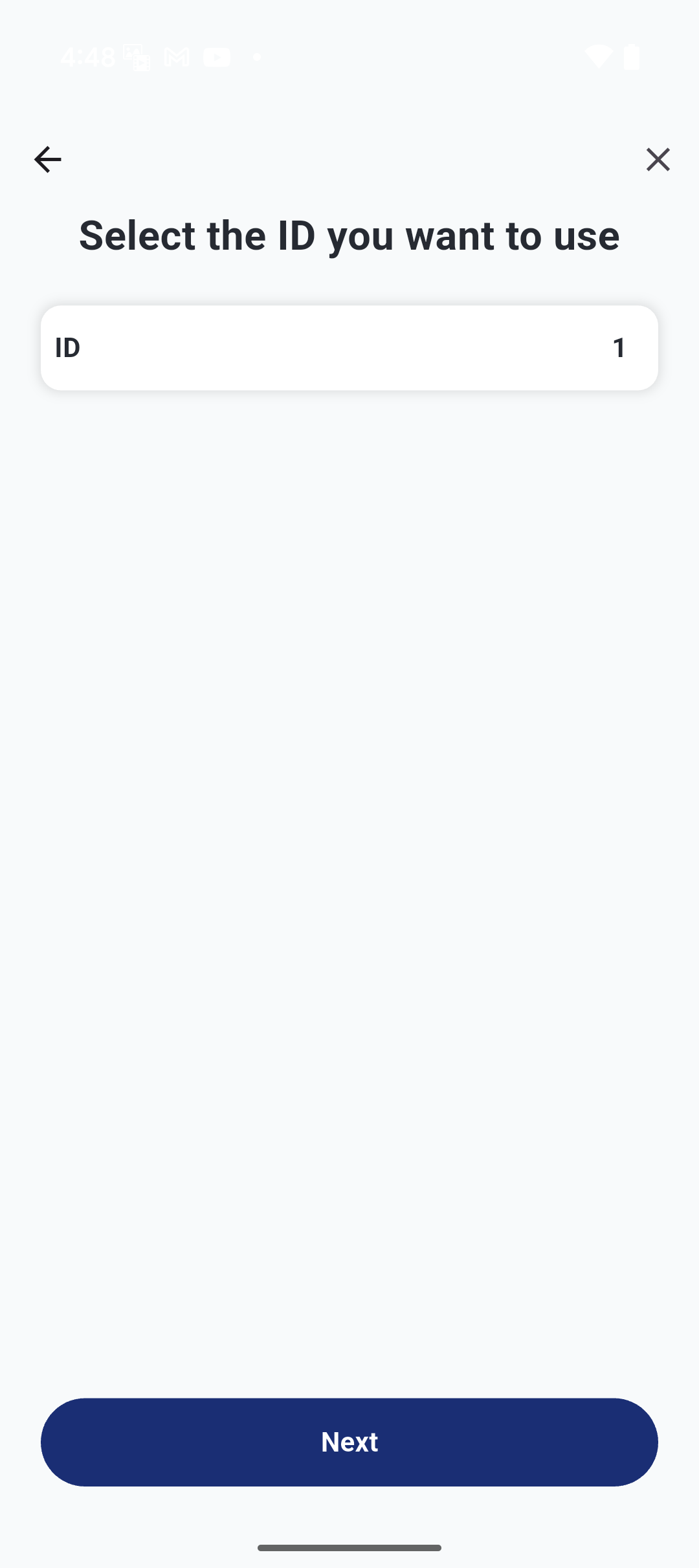 Select the ID of the user to be used and tap "Proceed" to complete the registration.
 -
Measurement
After measuring blood pressure, press and hold the [Bluetooth] button on the blood pressure monitor while on the home screen to receive and automatically register the measured blood pressure data in the app.
Connection Method for Bluetooth Blood Pressure Monitor (HCM-AS01BT/HCM-WS01BT)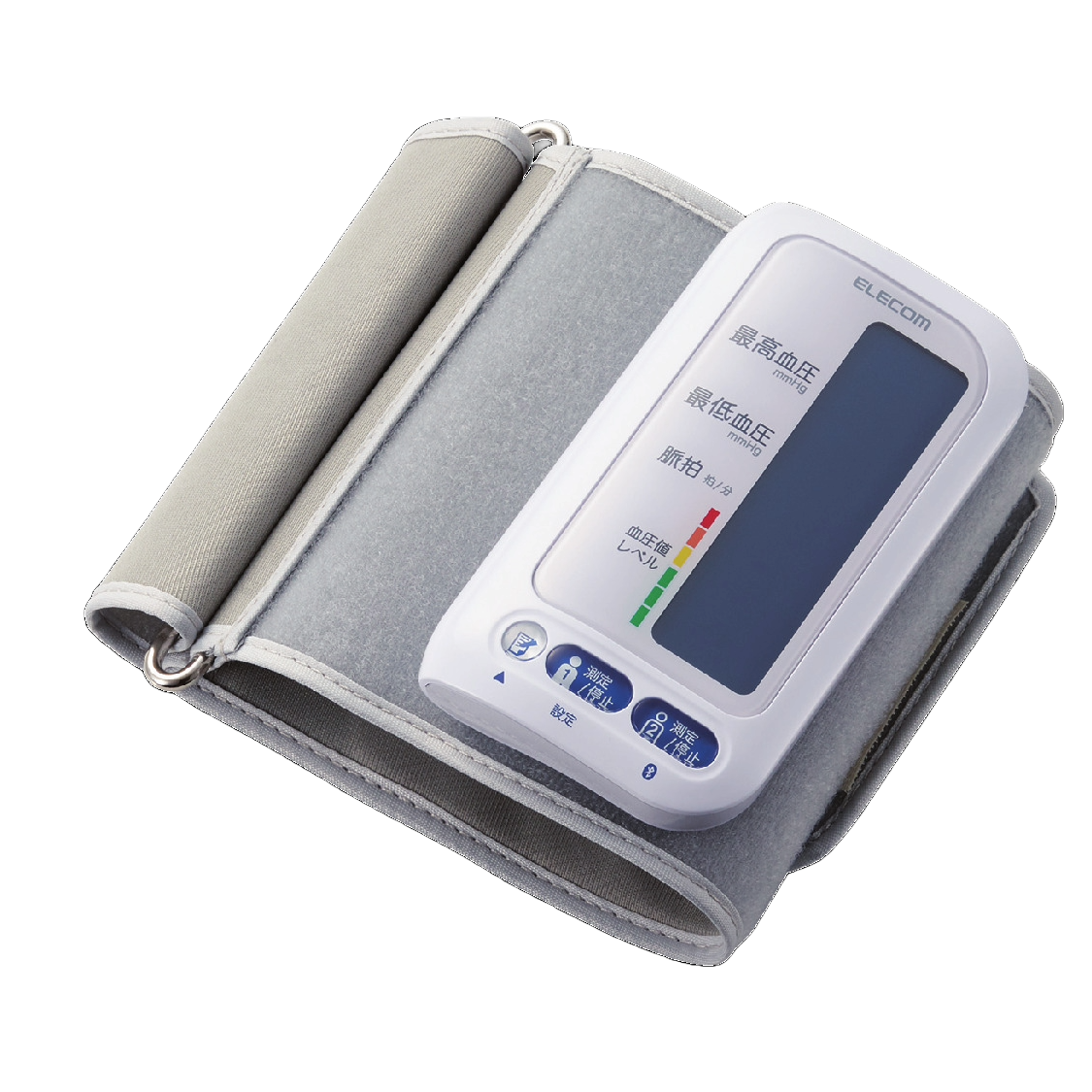
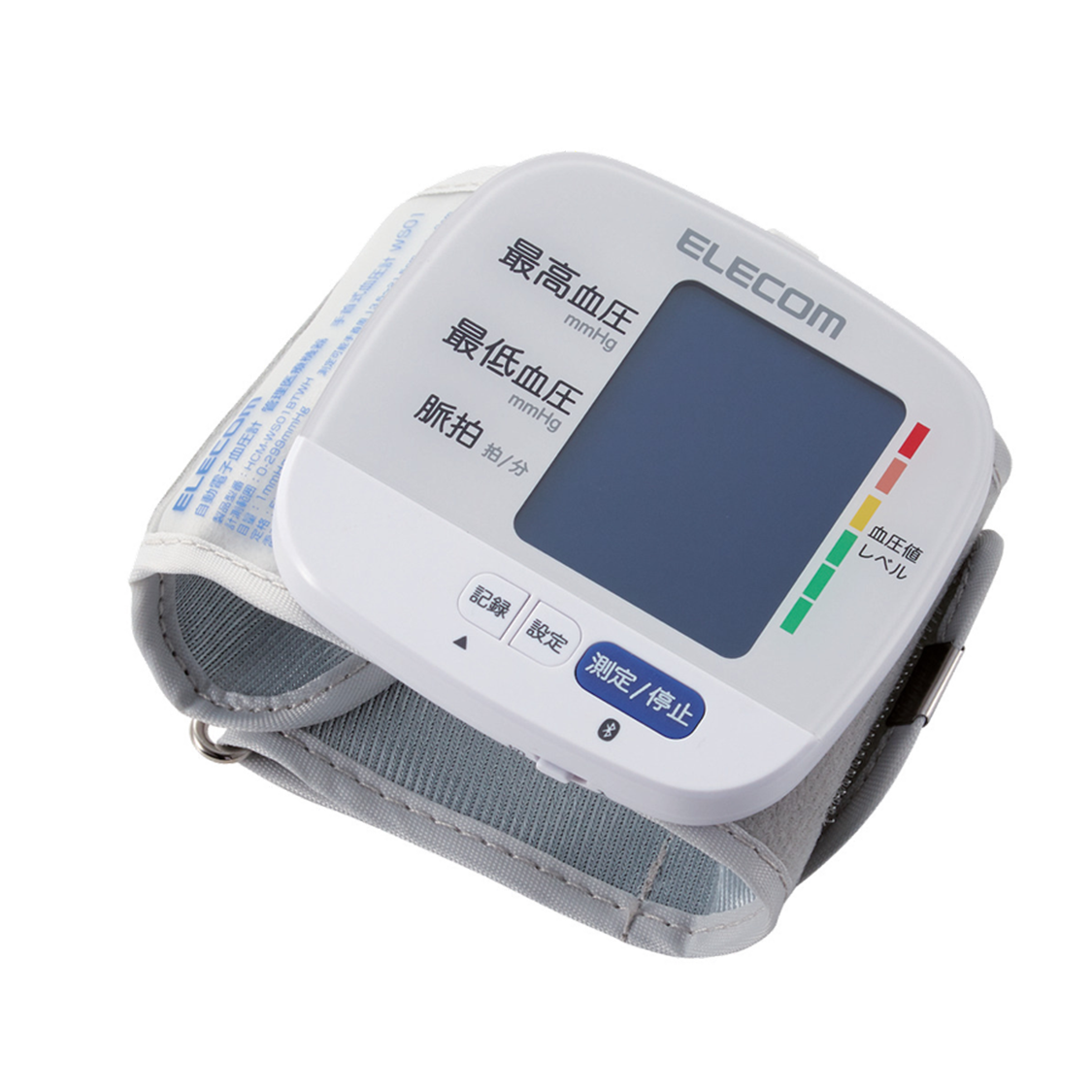 By using the Bluetooth Blood Pressure Monitor (HCM-AS01BT/HCM-WS01BT), you can receive and manage measured blood pressure values with this app.
-
Search & Register Device
You can detect it by pressing and holding the [Bluetooth] button on the blood pressure monitor while in the Bluetooth search screen. -
Select User
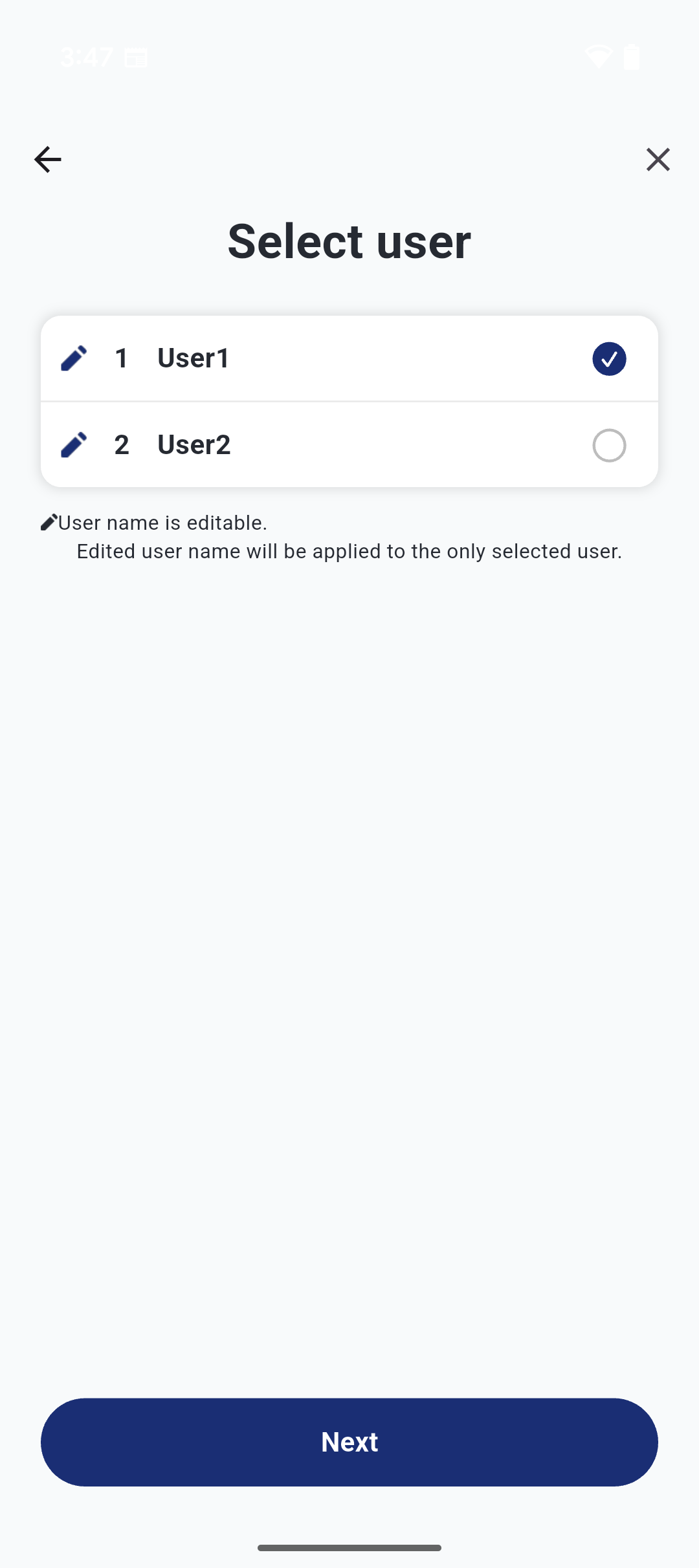 After selecting the Bluetooth blood pressure monitor, select the user number to be used. Please select the user displayed in the list.
You can also change the username from [Change Name]. -
Measurement
After measuring blood pressure, the measured blood pressure data is received and automatically registered in the app while on the home screen.
Screen Configuration
Home
You can customize and display [Goals][TODAY][Graphs]. Customize the display contents and order to your liking.-
Goals
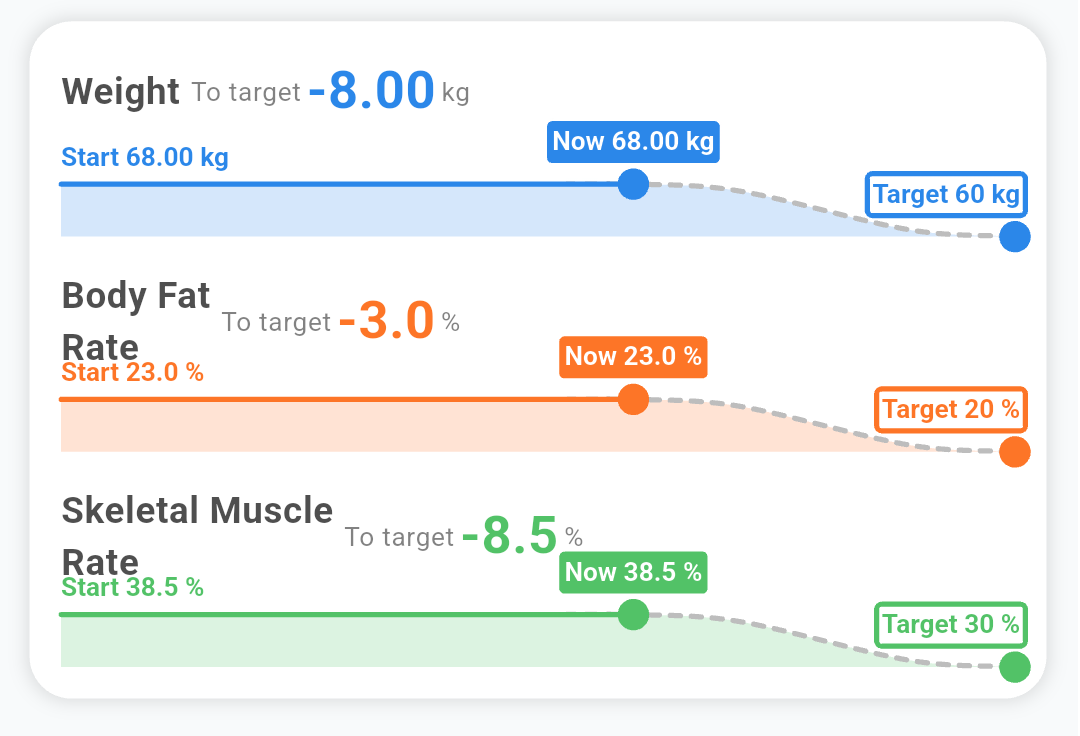 The progress of the set goals is visualized.
You can customize the goal contents in [Home Settings] or [Goal Settings]. -
TODAY
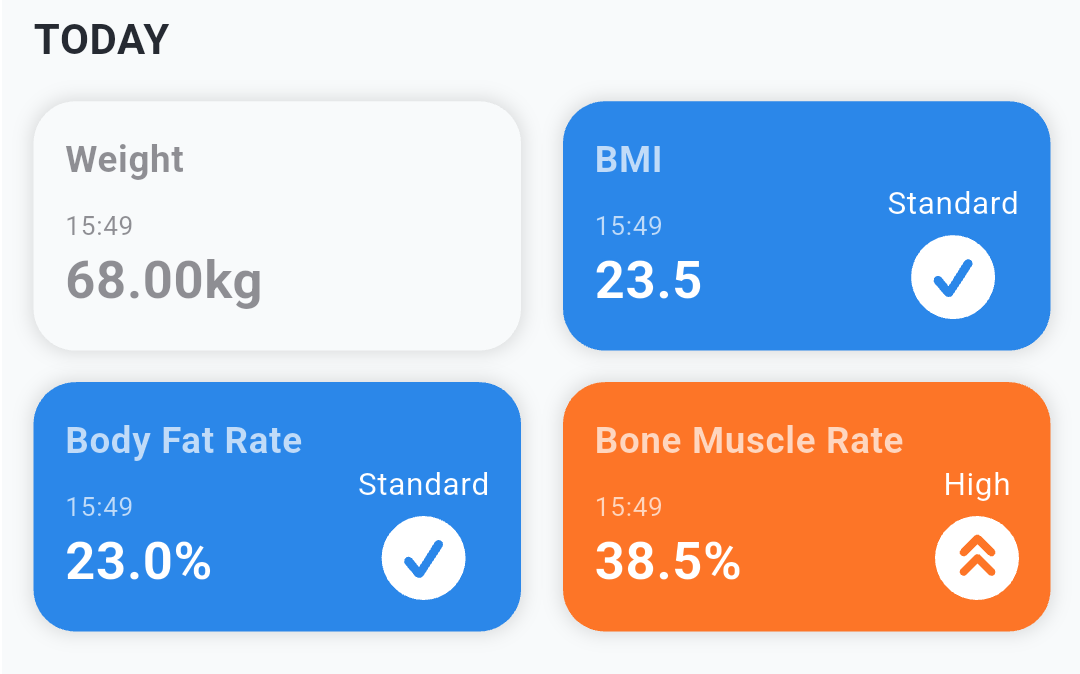 The daily measured values are displayed. You can customize the display contents in [Home Settings].
 -
Graphs
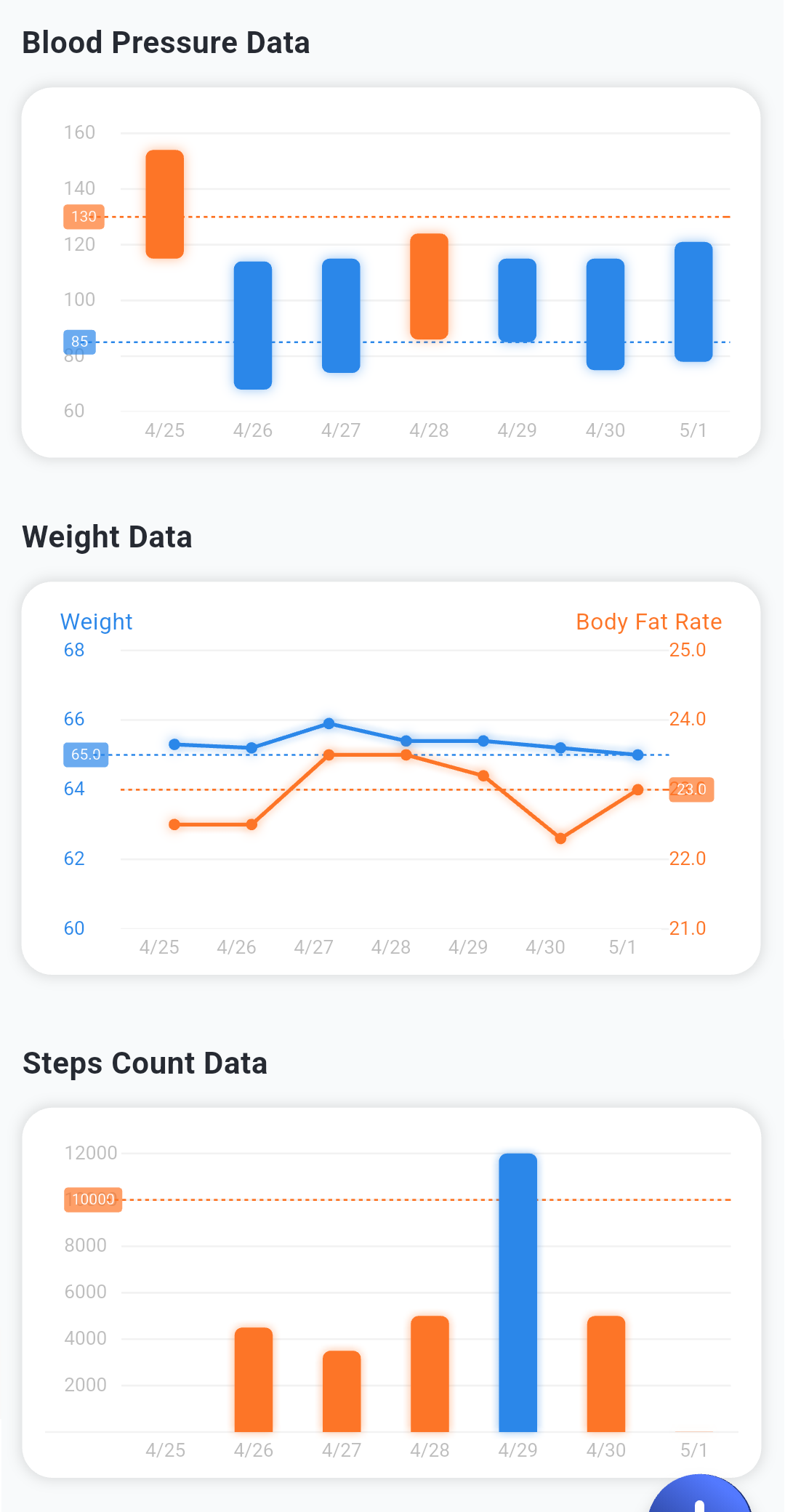 Display graphs of weight, blood pressure, and step count. Customize graph display period and secondary axis content for the weight graph.
Data
-
My Data
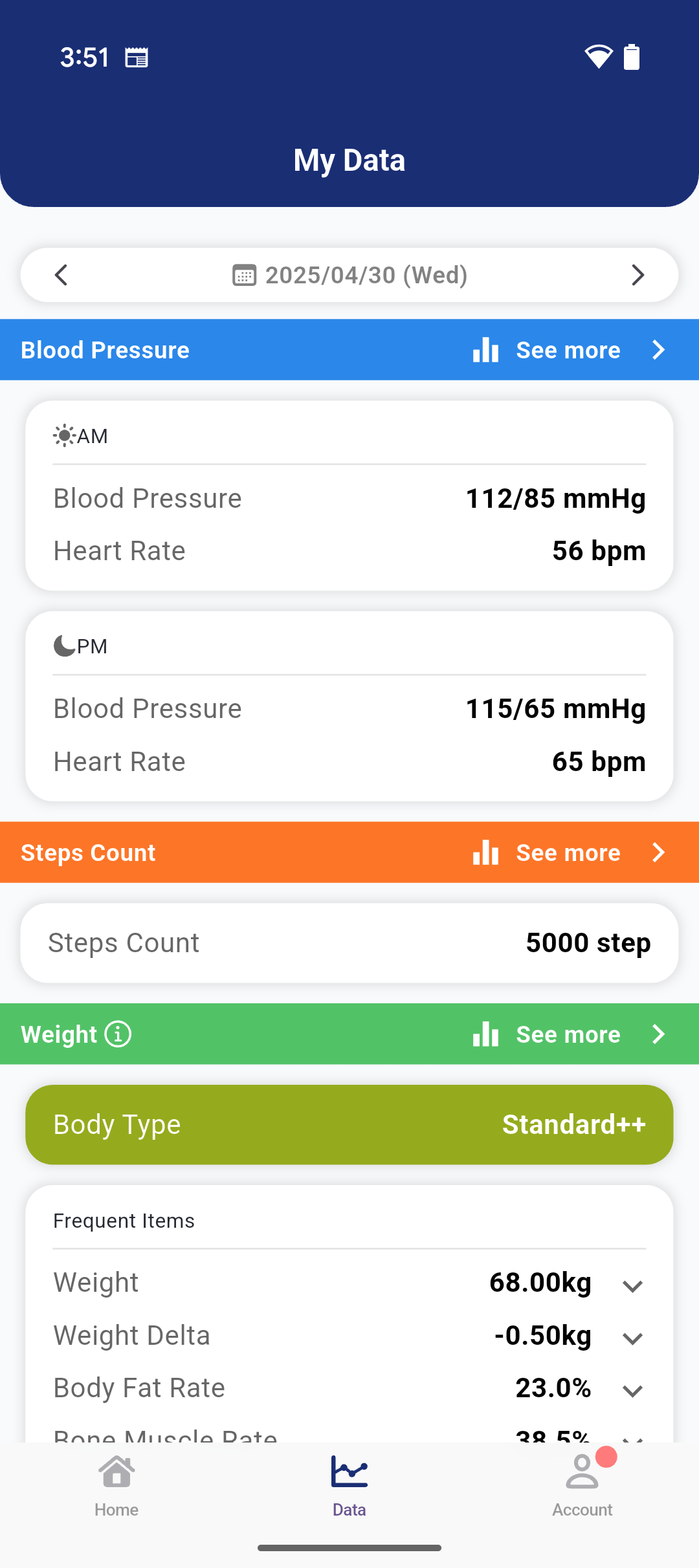 You can check the details of measurement data for each day.
You can display each graph from [See More]. -
Graphs
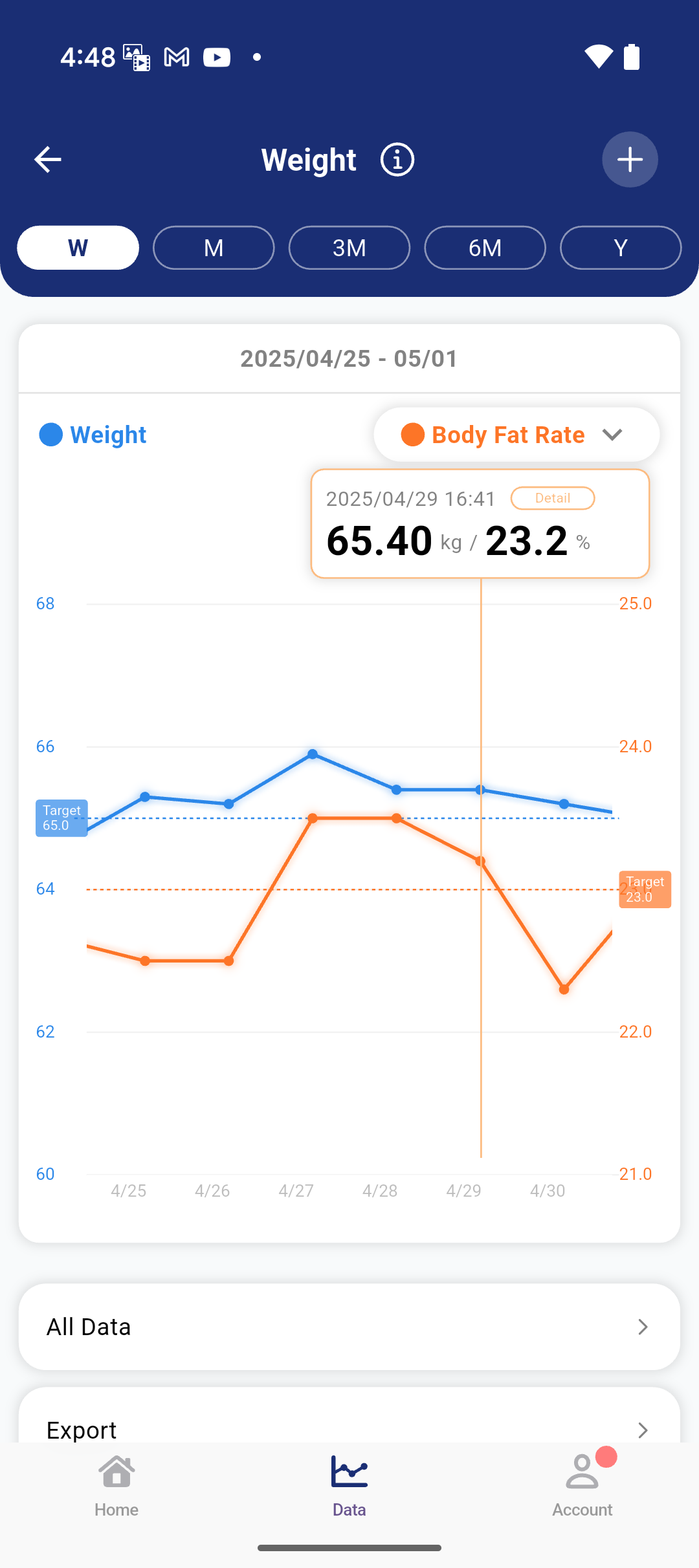 Display graphs of blood pressure, weight, and step count. You can choose the display period as day, week, month, 3 months, 6 months, and year. ※[Day] is only available for step count graphs.
You can also view a list of all data and export data (CSV/PDF). -
Health Management Tips
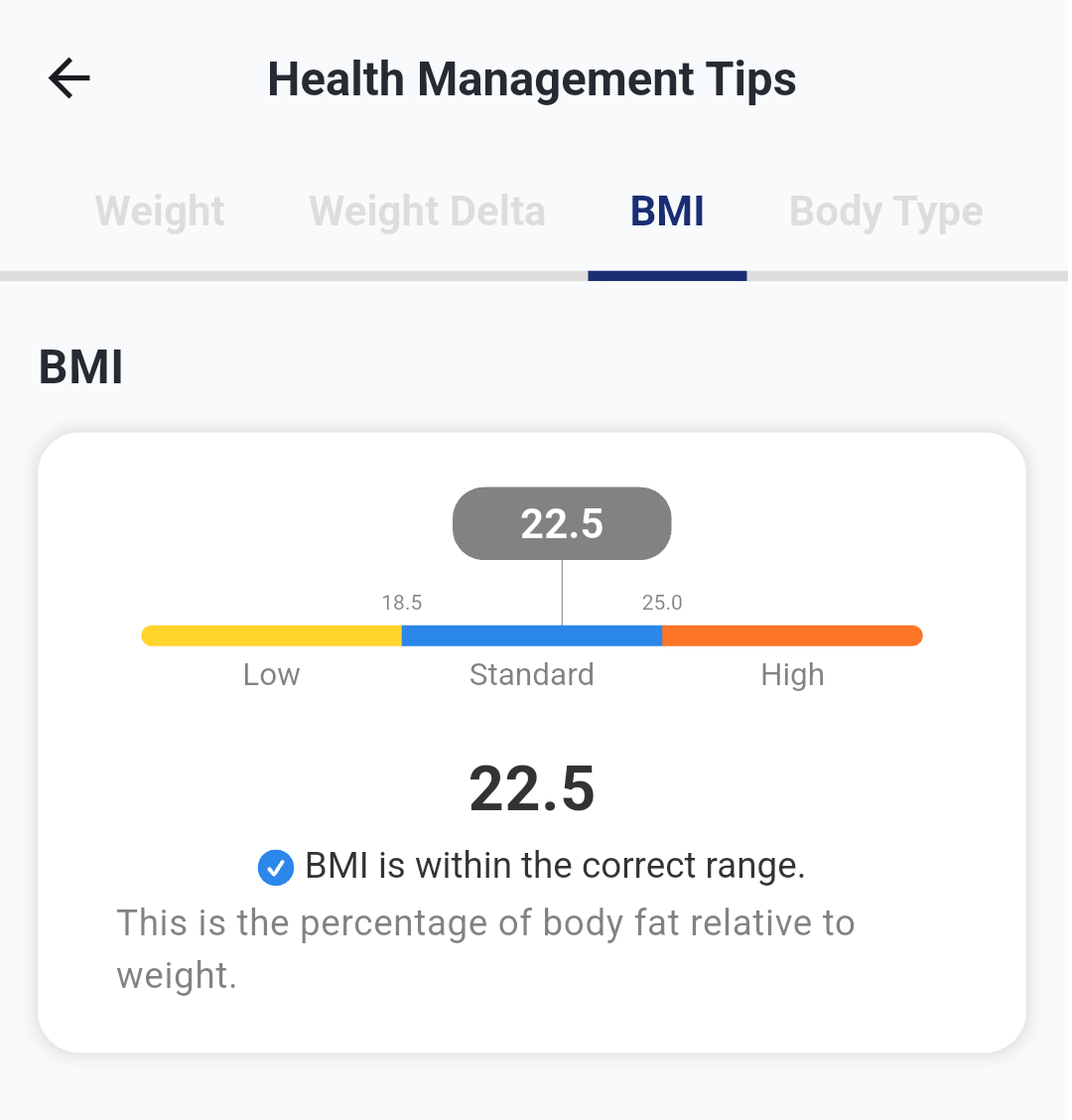 You can check information on each body composition. Explanations of the day's measurement values are also provided for reference in daily health management.
Account
You can edit user accounts and make various settings.-
News
You can check information regarding the operation status of this app and ELECOM Healthcare Cloud.
Important information may be delivered, so be sure to check. -
Add & Manage Devices
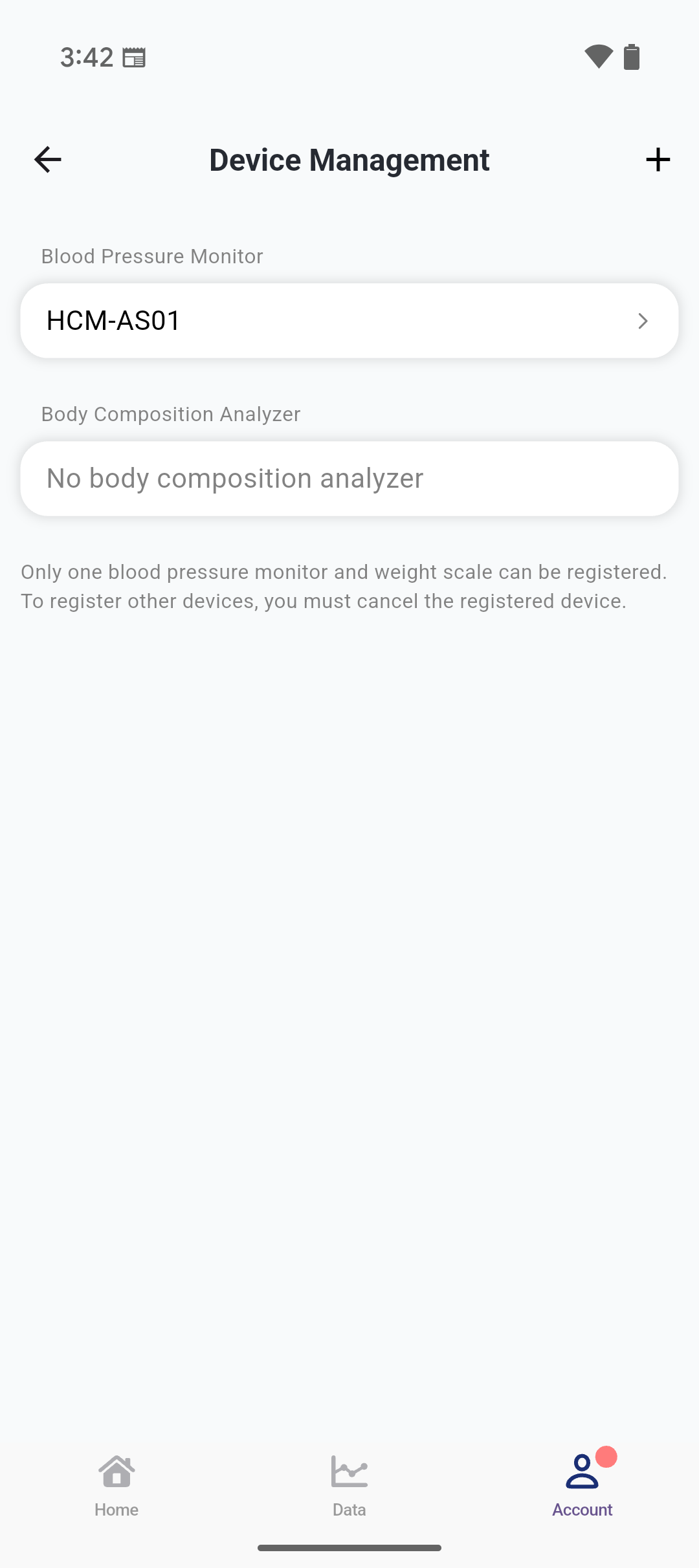 Add and manage measurement devices you use.
 -
Goals
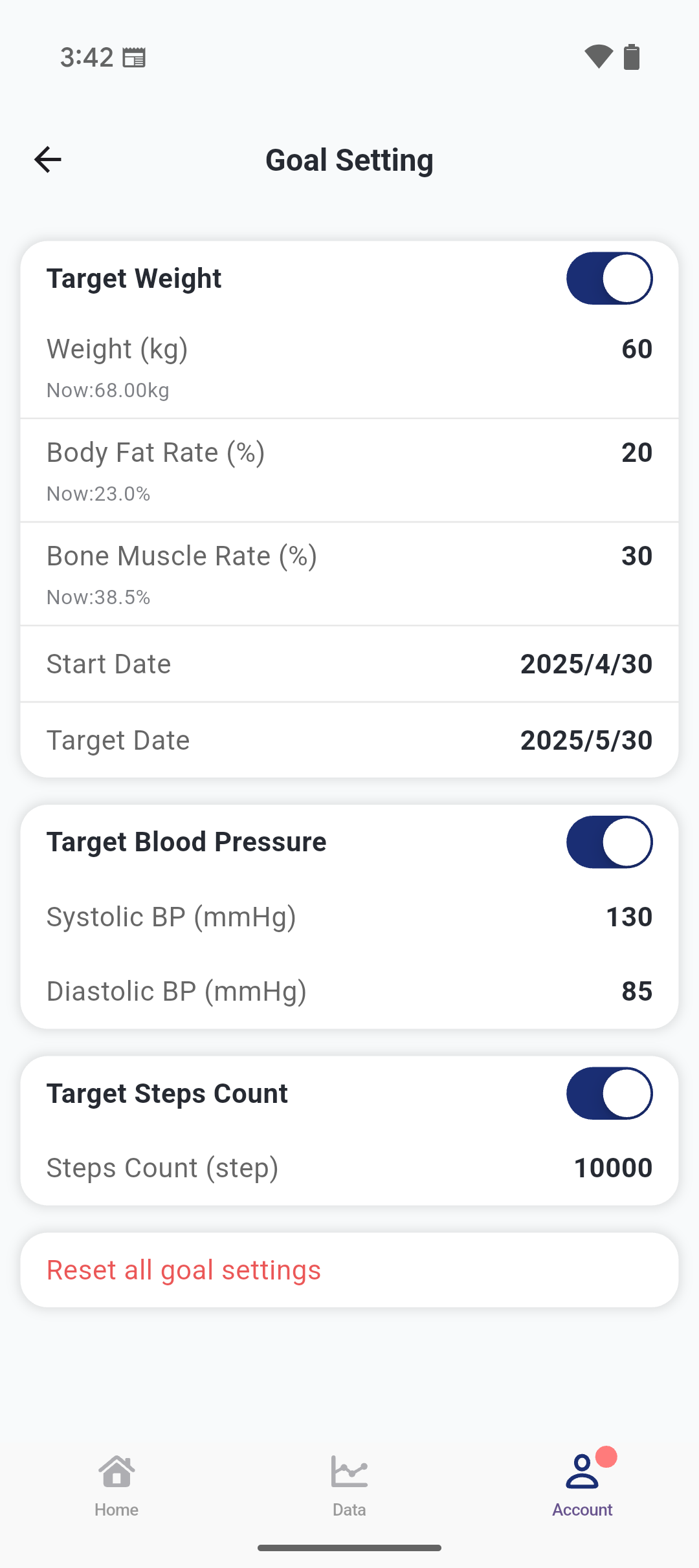 Set target values for weight, blood pressure, and step count.
 -
Settings
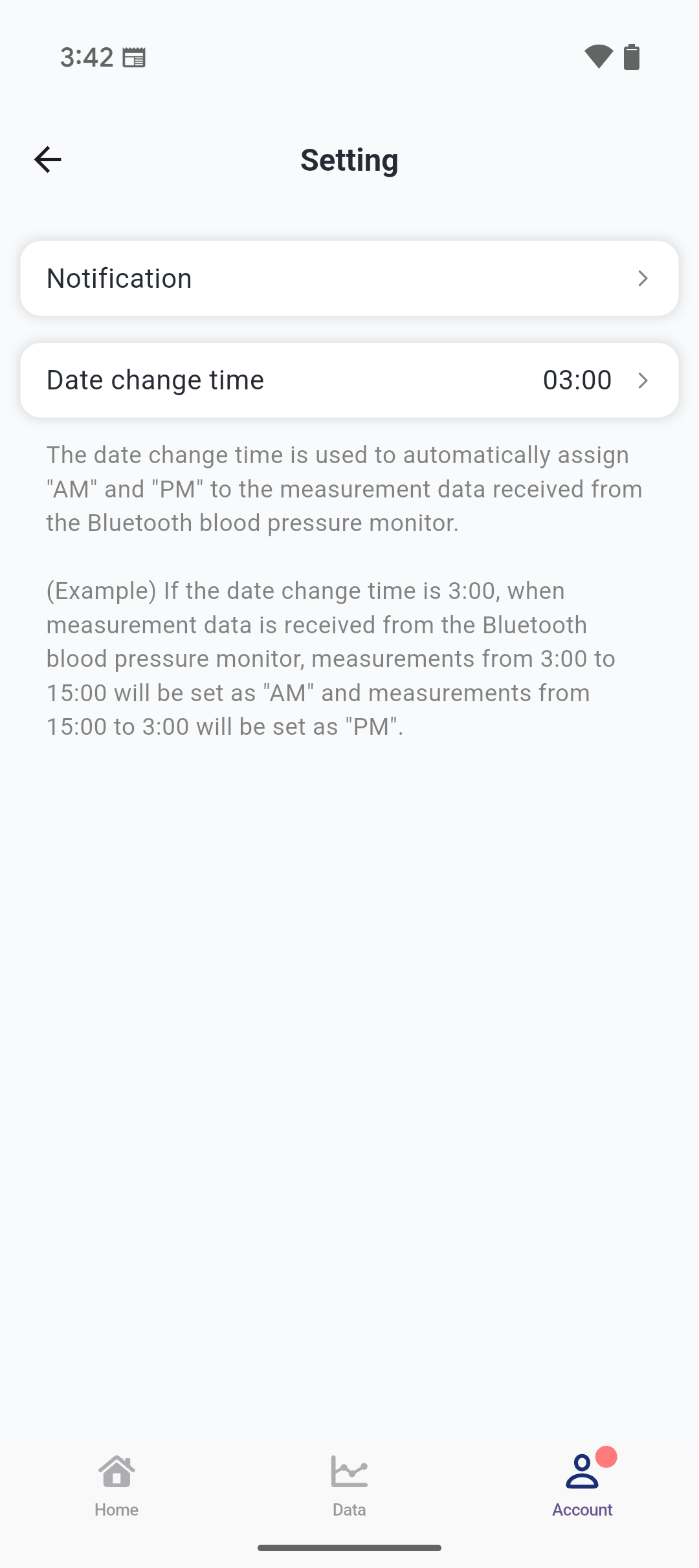 Set notifications and the date change time for blood pressure measurements.
 -
Data Management
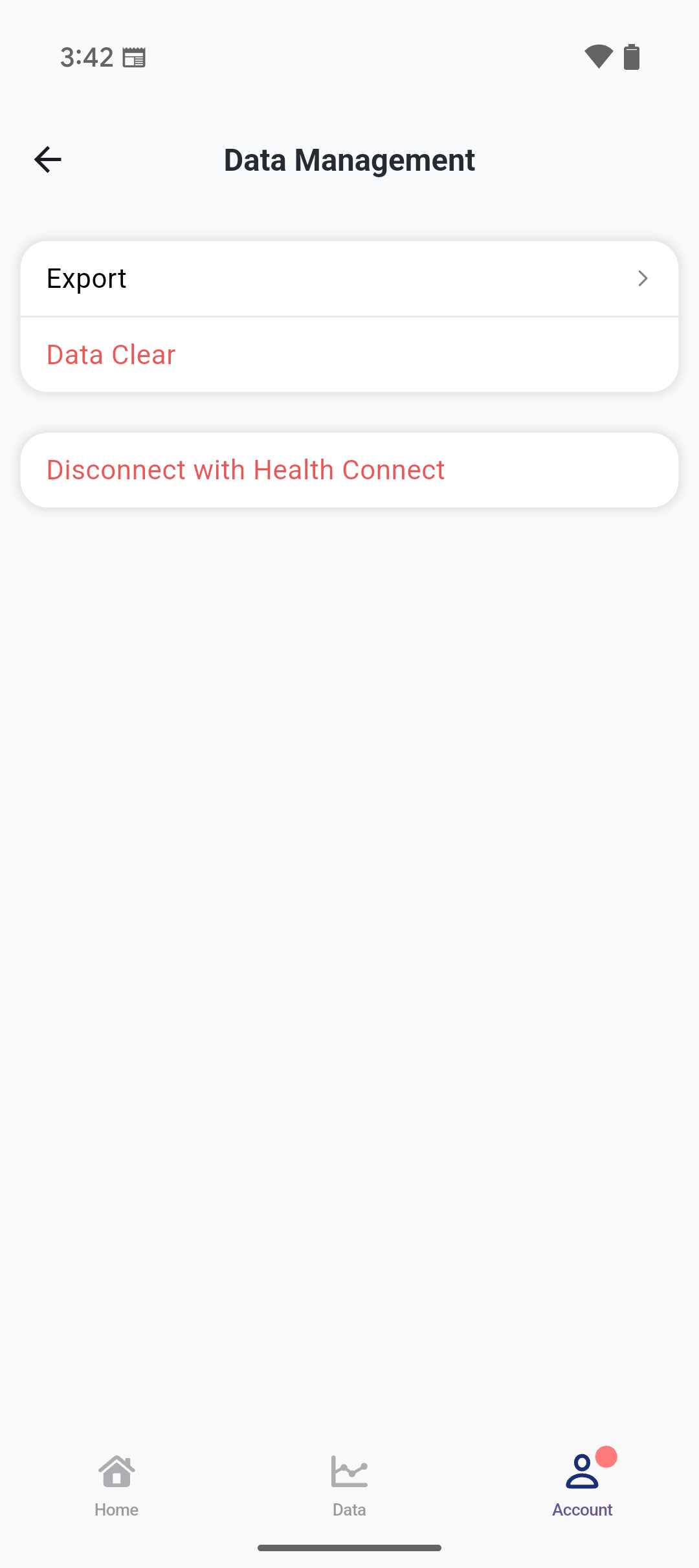 Export data to various formats and configure linkage with Healthcare and Health Connect.
 -
ELECOM Healthcare Cloud Login
Log in, log out, or delete your account for ELECOM Healthcare Cloud.
Use of Healthcare/Health ConnectYou can link with Healthcare (iOS) or Health Connect (Android). Linking enables the following functions.
・Acquisition of step count
・Export of weight/body fat percentage/blood pressure/heart rate
-
Healthcare
※iPadOS17 or later is required to connect with the Healthcare app on iPad.[Step Count Acquisition]
By linking with "Healthcare," which is standard on iOS devices such as iPhone, step count can be acquired.
[Export Measurement Data]
Export measurement data to Healthcare. Data to be exported includes:
・Weight
・Body Fat Percentage
・BMI
・Blood Pressure
・Pulse (Heart Rate)To use Healthcare, please allow access from "ELECOM Healthcare" in the Healthcare app. -
Health Connect
[Step Count Acquisition]
By linking with Health Connect, step count can be acquired.
[Export Measurement Data]
Export measurement data to Health Connect. Data to be exported includes:
・Weight
・Body Fat Percentage
・Blood Pressure
・Pulse (Heart Rate)To use Health Connect, select a Google account and choose "Allow All" for permission requests to "ELECOM Healthcare."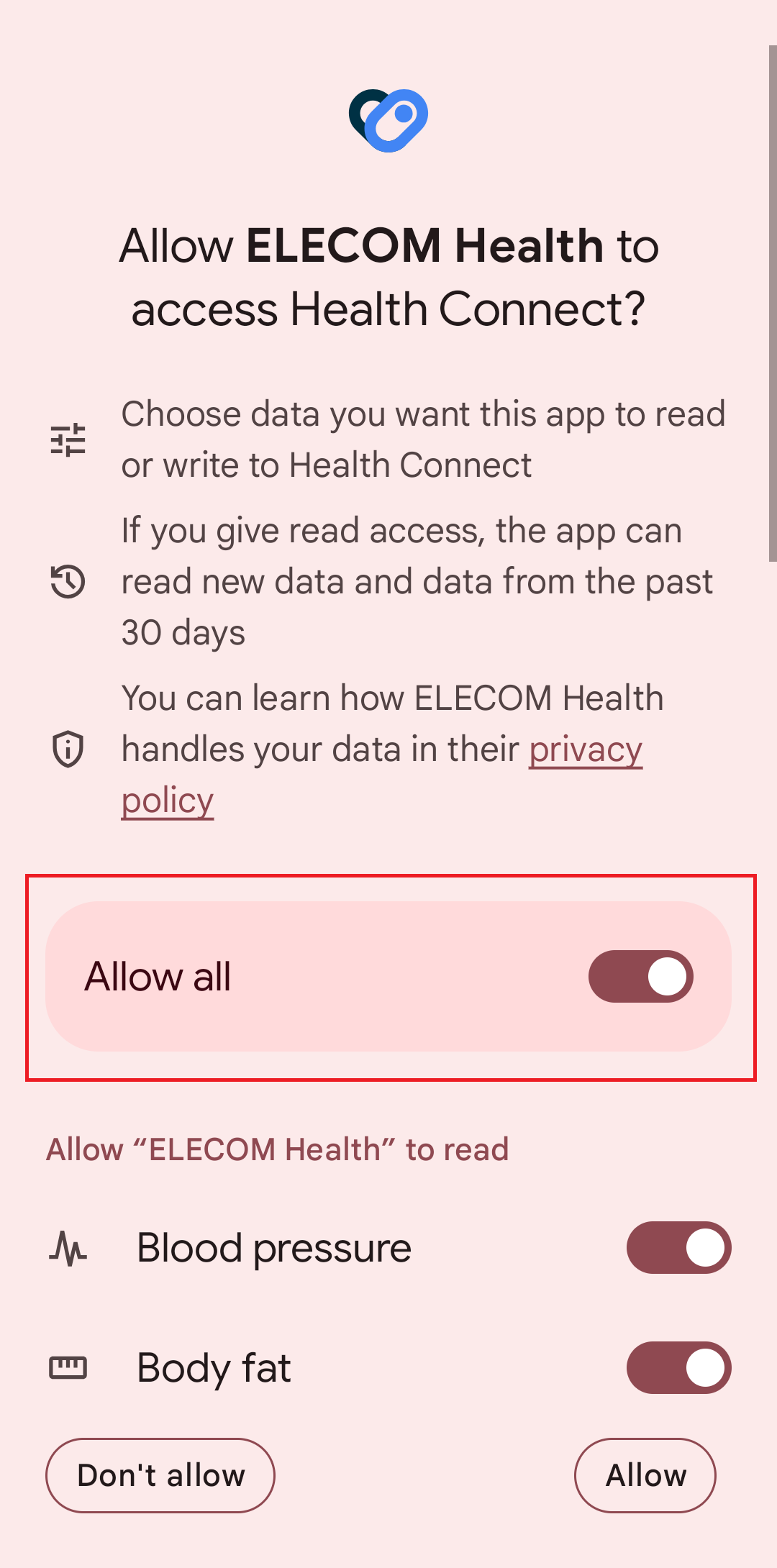 If the Health Connect app is not installed on your device, please download and install it from Google Play.
>>Health Connect (Google Play) -
Precautions When Using
Step counts obtained from Healthcare/Health Connect are displayed on the step count management screen but are not saved to ELECOM Healthcare Cloud.Privacy Policy
Measurement data accumulated in ELECOM Healthcare Cloud is not used for purposes other than backup.
Data Migration from ECLEAR plusBy logging in with the HELLO! account used in ECLEAR plus, you can import weight and blood pressure data into ELECOM Healthcare.
※ Step counts can be directly imported from iOS Healthcare/Health Connect, so there is no import from ELECOM Healthcare Cloud.FAQ (In Case of Trouble)-
- Measured values are not reflected in Health Connect
- It may take time to reflect in Health Connect. Please check again after some time.
If it is still not reflected after some time, please go to [Account] - [Data Management] and first perform [Unlink from Health Connect], then perform [Link with Health Connect] again.
-
- Google Fit steps not showing up on the app
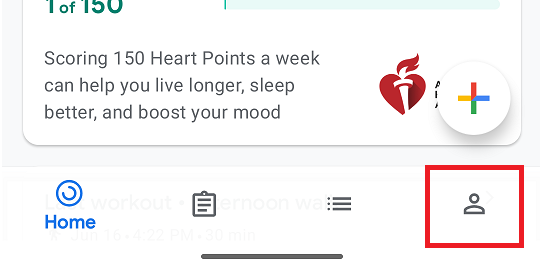
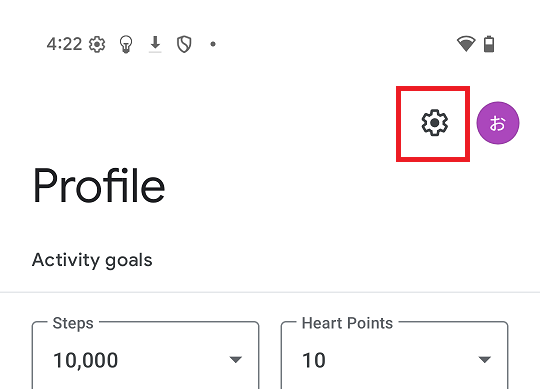
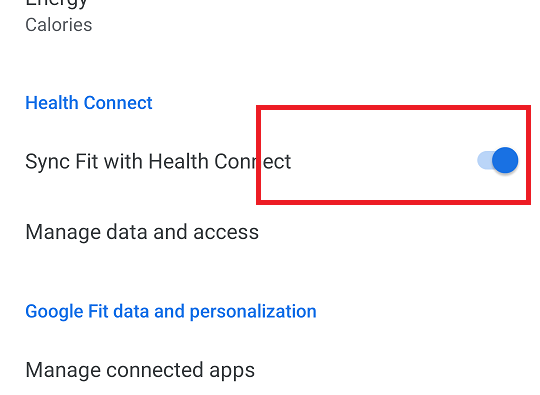
- This app can be linked to Health Connect, but to view the number of steps in Google Fit, you will need to set up the link in Google Fit.
Turn on [Profile]-[Settings]-[Sync Fit with Health Connect].
-
- Measured values are not reflected in Healthcare
- It may take some time for reflection in Healthcare. Please check again after a while.
If it is still not reflected after some time, go to [Account] - [Data Management], perform [Unlink from Healthcare], and then perform [Link with Healthcare] again.
※ iPadOS17 or later is required to use Healthcare on iPad.
-
- Cannot pair Bluetooth Blood Pressure Monitor
- ・There may be interference with other Bluetooth/Wi-Fi devices. Please try again in an environment with less radio interference.
・Try forcibly closing the app, turning Bluetooth/location settings OFF and ON again, or restarting the device.
・If too much time elapses after the blood pressure monitor device search, it may not connect. If the blood pressure monitor is detected, do not change user names, just select the user.
※ The device name is displayed in the smartphone's Bluetooth settings list, but pairing cannot be done there. Please launch this app and follow the pairing instructions from the [Device] menu.
-
- Cannot sync measurement values received by Bluetooth Blood Pressure Monitor across multiple devices
- Step count and blood pressure measurement values support "upload" only. Please use them as data backup.
You can download all data when logged in on another device.
※ Weight values support both "upload" and "download".
Health ConnectHealthcareBluetooth Blood Pressure Monitor HCM-AS01BT/HCM-WS01BTELECOM Healthcare Cloud